


Before you can apply for degree attestation, equivalence, or any other HEC service, your profile on the eServices portal needs to be complete and accurate. An incomplete or outdated profile is one of the most common reasons applications get stuck. This guide explains how to update your HEC profile, step by step.
Why Your HEC Profile Matters
Your profile is the foundation for every service you apply for on the HEC eServices portal, including degree attestation and foreign degree equivalence. HEC’s own guidance is strict on this point: your personal details must be entered exactly as they appear on your CNIC and your educational documents. If there’s a mismatch, your application won’t move forward, and HEC will flag it as a deficiency rather than process it.
Where to Update Your Profile
Go to eservices.hec.gov.pk, HEC’s official portal for degree attestation, equivalence, and related services. Log in with your registered CNIC and password, or sign up first if you don’t already have an account.
What’s Inside Your Profile
Once logged in, click My Profile from your dashboard. Your profile page is organized into these sections:
- Personal Information
- Address Information
- Change Password
- Change Email
- Change Phone Number
How to Update Your Personal Information
Step 1: Open Personal Information
From your profile page, go to the Personal Information section.
Step 2: Click the Edit (Pencil) Icon
This opens the section for editing. You can update fields including:
- Profile picture (PNG or JPG, within the portal’s size limit)
- Title
- First and last name, exactly as they appear on your CNIC, POC, or passport
- Gender
- Marital status
- Date of birth, exactly as per your CNIC, POC, or passport
- Father’s name
Step 3: Review Your Nationality Info
If you registered using your CNIC or passport, this section will already display that number in read-only form.
Step 4: Save Your Changes
Once you’ve finished editing, click Save and Close.
How to Update Your Address Information
In the Address Information section, enter or update your mailing address, including your country and postal code. Keep this current, since HEC may use it for any physical correspondence tied to your applications.
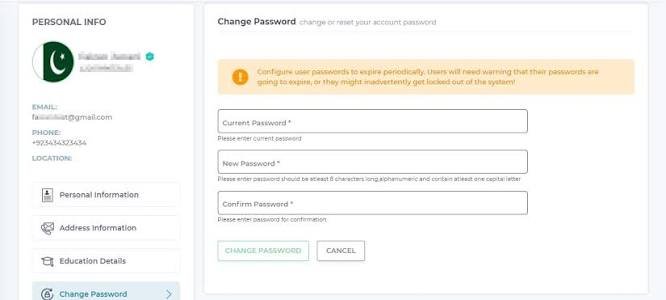
How to Change Your Password
- Select Change Password from your profile menu.
- Enter your current password, followed by your new password.
- Click Change Password (or Update Password) to confirm.
Your password should be at least 8 characters long, alphanumeric, and include at least one capital letter.
How to Change Your Email Address
- Select Change Email from your profile menu.
- Enter your new email address. Note that it can’t already be registered on the eServices portal under another account.
- Enter the verification code sent to confirm the change, and click Verify Code.
Keep this email active and regularly checked, since HEC sends every status update and your final certificates to this address.
How to Change Your Phone Number
- Select Change Phone Number from your profile menu.
- Enter your new mobile number.
- Click Change Phone to confirm, after completing any verification step shown.
Checking Your Update History
Your profile includes a Logs section, where any change made to your common profile is recorded. This is useful if you need to confirm when a particular update was made, especially if you’re troubleshooting an issue with an application.
Why an Incomplete Profile Causes Problems Later
HEC’s own degree attestation manual is direct about this: incorrect or incomplete profile information can cause problems during account verification, profile completion, or later stages of your application. If HEC’s scrutiny process finds your personal details don’t match your CNIC or academic documents exactly, the fix is always the same, go back to Profile Settings and correct the relevant section before resubmitting.
Tips for a Trouble-Free Profile
- Match your name and father’s name spelling exactly to your CNIC and academic documents, including capitalization and spacing.
- Double-check your date of birth matches your CNIC precisely.
- Use an email address and phone number you check regularly, since these are your main channels for application updates.
- Complete every profile section fully before starting a new service application, rather than leaving fields blank to fill in later.
Frequently Asked Questions
Where do I update my HEC profile?
Through the official HEC eServices portal at eservices.hec.gov.pk, under the “My Profile” section after logging in.
Why does my application keep getting flagged over personal details?
This usually means your profile information doesn’t exactly match your CNIC or educational documents. Go back to Profile Settings, correct the relevant field, and resubmit.
Can I change my registered email on the HEC portal?
Yes, through the Change Email option in your profile, provided the new email isn’t already registered under another account.
Is there a fee to update my HEC profile?
No. Updating your profile information is free; fees only apply to specific services like degree attestation or equivalence applications.
What happens if I leave my profile incomplete?
You may not be able to properly submit applications for services like degree attestation, since HEC requires a complete profile before processing most requests.
Keeping your HEC profile accurate and complete is a small step that prevents a lot of delay later. Match every detail to your CNIC and academic documents, and your future applications on the portal should move through without unnecessary hold-ups.
