


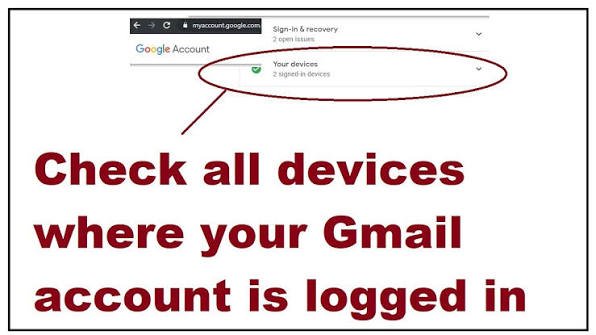
You can see every phone, laptop and browser that is signed in to your Google Account in a minute, and sign out any you do not recognize. Go to myaccount.google.com, open Security & sign-in, and in the Your devices panel choose Manage all devices. These are the steps Google’s own help page gives. Here is how to read the list, how to sign out of a device, what to do if something looks wrong and what I could not confirm.
Why Check Your Devices
Your Google Account may hold your Gmail, YouTube, Google Drive, photos and Android phone backup. If someone else is signed in, they may be able to see some of it. Checking takes a minute, and it helps most after you have used a shared computer, lent your phone, sold or repaired a phone, or received a security alert. That use list is general advice. The steps below come from Google’s support pages.
How to See Devices Signed In to Your Google Account
- Open myaccount.google.com and sign in if asked.
- Select Security & sign-in.
- In the Your devices panel, select Manage all devices.
- Review the list. Select a device or session to see more details.
Google says the same path applies on a computer and on a phone.
How to Read the List
- What is listed: Devices where you are signed in now, or were signed in “in the last few weeks.”
- “Signed out”: This label appears on devices or sessions that are no longer signed in.
- Sessions: A session is a period of sign-in from a browser, app or service on a device. Several sessions on one device are normal.
- Time: The time shows the last communication between that device or session and Google. It can include background syncing, so it may be more recent than the last time you used the device.
- Incognito windows: Private browsing windows also create sessions.
- New sessions: One is created when you sign in on a new device, re-enter your password, sign in on a new browser, app or service, or give an app access to your account data.
How to Sign Out of a Device
- Go to Security & sign-in, then Manage all devices.
- Tap the device you want to remove.
- Tap Sign out.
If several sessions share the same device name, they may come from one device or from several. Google says to sign out of all of them to be sure no other device still has access.
Do Not Panic If You Do Not Recognize Something
Google notes that some activity you do not recognize may still be yours. Common examples are a new device, a public computer, a phone you recently factory-reset, or travel to a place shown in the list. Look at the device type, the time and the location before you decide.
If Something Looks Wrong
- Sign out of the unfamiliar device using the steps above.
- Change your password. Go to Security & sign-in, then Password. Use a strong password that you do not use anywhere else.
- Review security activity. Open myaccount.google.com/notifications. It shows activity from the past 28 days, such as sign-ins on new devices, password changes, changes to recovery information and requests to download your data. If you do not recognize an item, choose the option to secure your account, and follow the prompts.
- If you get a security alert on your phone and the sign-in is not yours, tap “No, it’s not me.” Google says this signs your account out of all other devices.
- If you cannot sign in or someone changed your password, follow Google’s account recovery steps.
Other Steps Google Recommends
- Check your recovery phone number and email. They can warn you about suspicious activity and help you get back in.
- Turn on 2-Step Verification. Google suggests a security key or Google prompt rather than text-message codes, because they resist phishing better.
- Use a unique password for each account. A password manager and Google’s Password Checkup can help you find weak, exposed or reused passwords.
- Remove risky access. Review the apps linked to your account and remove any you do not need.
- Remove apps and browser extensions you do not use, especially on devices with sensitive information.
- Keep your browser, phone software and apps updated.
- Run a Security Checkup. Google offers one for personal recommendations.
Is That Security Alert Real?
Google says to check the security activity page to confirm an alert. If no matching activity appears there, the alert may be fake, so do not click anything in it. Google also says it never asks for your password by email, message or phone call.
Beware of Scams
- Never share your password or a verification code with anyone, even someone who says they are from Google.
- Do not sign in through links in messages. Type myaccount.google.com yourself or use the Google app.
- Do not pay anyone to “recover” or “secure” your account. Google’s help pages mention no fee for these steps.
These tips are general advice, though the first point matches Google’s own guidance.
What I Could Not Confirm
- Menu names on your screen. I read Google’s English help pages. Labels and layout can differ by app version, device and region, so you may see slightly different words.
- Exactly how far back the list goes. Google says “the last few weeks” for the devices list. The 28-day figure applies to the security activity page, not the devices list.
- What signing out does on your own Android phone. Google’s page does not explain what happens to the phone’s built-in Google account sync.
- Third-party app access. The devices page does not explain how to review or remove individual app permissions. Google’s security tips page only says to review apps linked to your account.
- Security Checkup details. I could not read the page that explains everything it covers.
- Recovery steps. I did not read Google’s full account recovery process.
This is general information, not an official notice. Google’s own help pages are the final authority.
Frequently Asked Questions
How do I see which devices are logged in to my Google Account?
Go to myaccount.google.com, open Security & sign-in, and in Your devices choose Manage all devices.
How do I sign out of a device remotely?
Open Manage all devices, tap the device and tap Sign out.
Why do I see the same device more than once?
Each session is listed separately, and several sessions on one device are normal. Sign out of all of them if you are unsure.
Why does a device show a recent time when I have not used it?
The time shows the last contact with Google, which can include background syncing.
Should I change my password after signing out of a device?
If you do not recognize the device or activity, yes. Google recommends it.
Does an incognito window show up in the list?
Yes, private browsing windows also create sessions, according to Google.
Is it free?
Google’s help pages mention no fee for checking devices or signing out.
Check your devices regularly, especially after using a shared computer or changing phones.
