


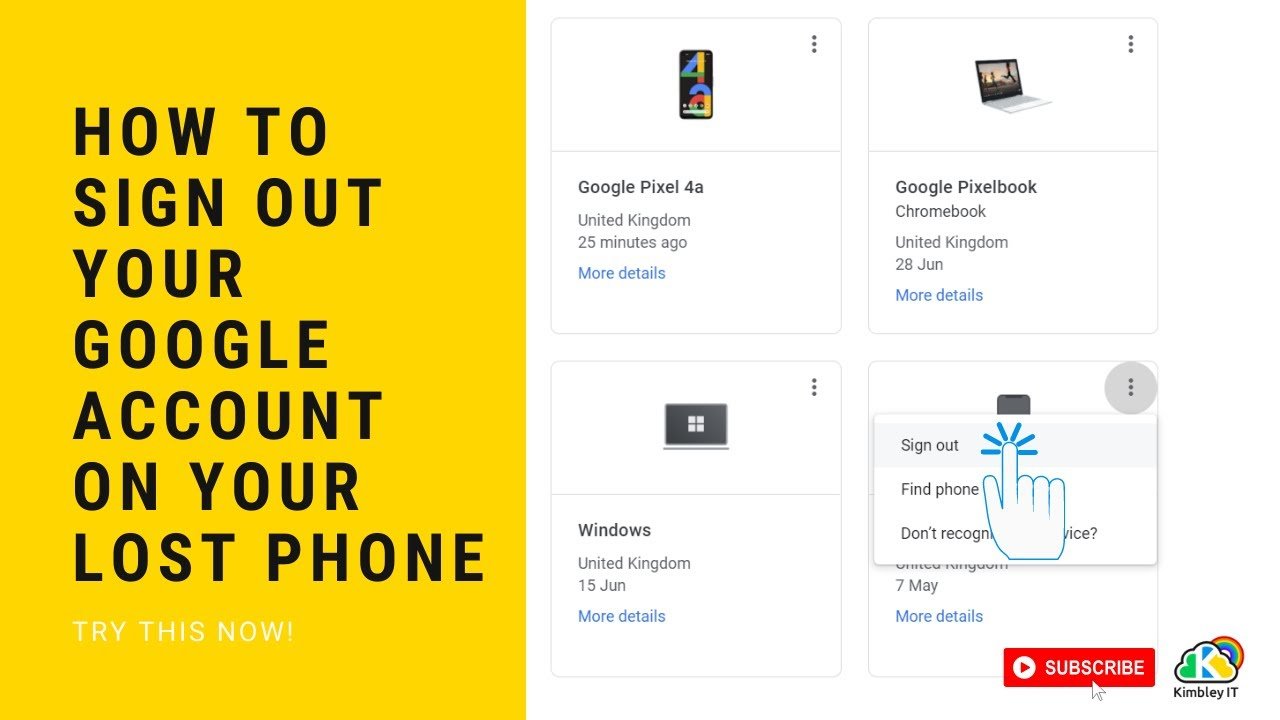
If your phone is lost or stolen, act on your Google Account first. From a computer, sign in to your Google Account, open Security & sign-in, choose Manage all devices, select the lost phone and tap Sign out. Then change your password, lock the phone with Find Hub and call your mobile company. Google’s help pages say remote sign-out is done from a computer, not from the lost phone. Here are the steps in a sensible order, plus what to do in Pakistan about your SIM and the phone’s IMEI.
Step 1: Sign Out of Gmail From Another Device
Use a computer or someone else’s phone, and sign in to your own account.
- Open Gmail and click your profile picture at the top right.
- Click Manage your Google Account. It may appear as Edit Google Account.
- On the left, click Security & sign-in.
- In the Your devices panel, click Manage all devices.
- Select the lost phone, or the session you want to remove.
- Click Sign out.
A phone can show several sessions. Google says to sign out of each one so that no access remains. If you are unsure which device is which, sign out of all sessions with that device name.
Step 2: Change Your Google Password
Go to Security & sign-in, then Password, and set a strong password you do not use anywhere else. Google lists this as a step when you suspect unfamiliar activity. Do it even after signing out of the phone, because a thief may already know or guess your old password.
Step 3: Lock the Phone With Find Hub
If the phone is an Android phone, use Google’s Find Hub. Go to google.com/android/find, or use the Find Hub app on another Android phone or tablet, and sign in. If you are helping a friend, you can sign in as a guest.
- Find it: The map shows an estimated location, or the last known location if the current one cannot be found. “Play sound” rings the phone at full volume for 5 minutes, even on silent.
- Mark as lost: This locks the phone with its own PIN, pattern or password and turns off notifications and quick access. You can show a message and a contact number on the lock screen. Google’s article on what to do after a lost phone adds that “Secure device” or “Mark as lost” also signs out your Google Account and can remove cards from Google Wallet. Google’s Find Hub page does not say this, so do not rely on it. Do Step 1 yourself.
- Erase the phone: This is a factory reset. It permanently deletes data on the phone but may not delete an SD card. After a reset the phone no longer appears in Find Hub and cannot be tracked. If you get it back, you need your Google Account password to use it.
This works only if the phone has power, is connected to mobile data or Wi-Fi, is signed in to a Google Account and has Find Hub turned on. If the phone is switched off or offline, the commands may not reach it. Google’s page does not explain what happens to your account in that case, which is why signing out from your computer comes first.
Step 4: Check Recent Activity
Open myaccount.google.com/notifications. It shows security activity from the past 28 days, such as sign-ins on new devices, password changes and changes to recovery information. If you see something you do not recognize, choose the option to secure your account and follow the prompts. Also check your recovery phone number and email, and turn on 2-Step Verification if it is not on. Google suggests a security key or Google prompt rather than text-message codes.
Step 5: Call Your Mobile Company
Google’s article on lost phones advises contacting your mobile carrier so it can suspend service and block the IMEI. In Pakistan, also remember that your SIM may receive verification codes. Ask your company to block the SIM, and ask whether it can issue you a new SIM with the same number. That detail is general advice, not from Google’s pages.
Step 6: Block the Phone With PTA
The Pakistan Telecommunication Authority (PTA) blocks lost and stolen phones by IMEI. The two reports I read describe the process like this:
- File a blocking request on PTA’s online complaint system. The PTA page names it the Complaint Management System, and ProPakistani’s 2021 guide calls it the Lost & Stolen Device System.
- Provide your details and the phone’s IMEI. ProPakistani lists your name, address, email, CNIC and details of the device.
- Keep the complaint reference number. You need it to unblock the phone if you recover it.
- PTA says the phone is blocked within 24 hours of verification.
PTA’s toll-free number was 0800-55055, open 9 am to 9 pm, according to its 2021 announcement. Your phone’s IMEI is on the box or the purchase receipt. A police report is also recommended by Google’s article, and it helps if the phone is found. Whether PTA requires one is not clear in the pages I read.
Step 7: Protect Your Money
If your phone holds banking apps, mobile wallets or cards in Google Wallet, contact your bank or wallet provider and ask to freeze or limit access. Google’s article tells you to contact your bank or card issuer. Change your banking and social media passwords from another device.
Beware of Scams After You Lose a Phone
- Scammers may message your number or contact “Find My Phone” help lines. Do not share passwords or codes with anyone who says they found your phone.
- Never share your Google password or a verification code. Google says it never asks for your password by email, message or phone call.
- Do not pay anyone to “unlock” or “track” your phone. The steps above are the official ones, and the sources I read mention no fee.
These tips are general advice, except where noted.
What I Could Not Confirm
- Whether “Mark as lost” signs you out. Google’s article on lost phones says it does, but the Find Hub help page does not say so. I advise using Step 1.
- iPhones. I did not read Apple’s steps. The Google steps work for the Google Account on any device, but Find Hub is for Android.
- What happens if the phone is offline when you lock or erase it. Google’s page does not explain.
- The current PTA process. The details above come from 2021 reports. I could not open a newer ProPakistani guide from September 2026, so check PTA’s website or call 0800-55055 for the current method.
- Whether PTA needs a police report or other documents.
- Menu names. Labels such as “Manage your Google Account” and “Mark as lost” may look different on your screen.
This is general information, not an official notice.
Frequently Asked Questions
Can I sign out of Gmail on a lost phone remotely?
Yes, from a computer. Open Security & sign-in, Manage all devices, select the phone and tap Sign out.
Do I need the phone to do this?
No. Google says remote sign-out is done from a computer, not the phone itself.
Should I erase the phone?
Google suggests it as a last resort if you cannot recover it. After erasing, you can no longer track it.
Will changing my password help?
Google lists changing your password as a step when there is unfamiliar activity.
How do I block a lost phone in Pakistan?
File a request with PTA using the phone’s IMEI. Check PTA’s website for the current steps.
What if my phone is switched off?
Remote lock and erase may not reach it. Sign out from your computer and change your password.
Is any of this free?
The sources I read mention no fee for the Google steps or the PTA request.
Act quickly: sign out first, change your password, then lock the phone and tell your mobile company.
