


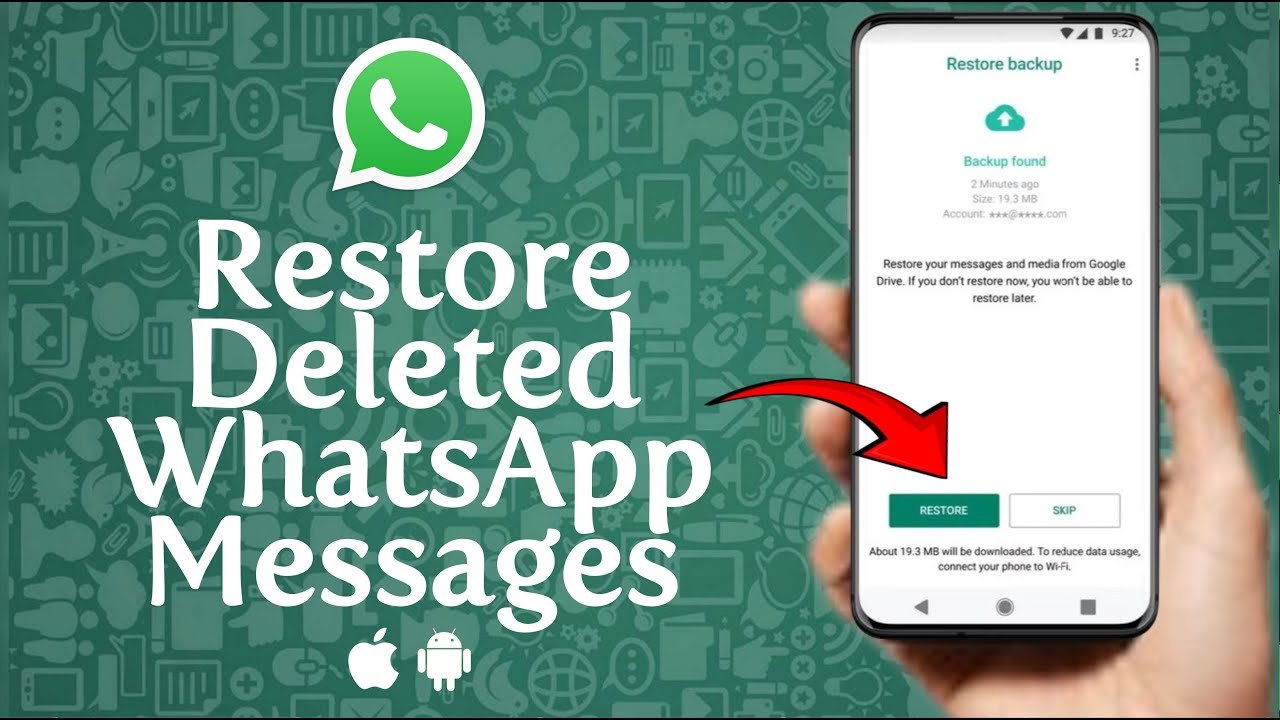
You can get deleted WhatsApp photos back from a backup only if the backup was made before you deleted them. On Android, you restore from your Google Account (Google Drive) backup, and on iPhone from your iCloud backup. The catch is that restoring an old backup removes chats and media you received after it was made. So try the easier fixes first: your phone’s gallery, the chat’s “Media, Links and Docs” screen, a request to the sender, and the WhatsApp media folder on Android. Here are the steps in a safe order, what to check before you restore and what I could not confirm.
First, Understand What WhatsApp Can and Cannot Do
- WhatsApp says it cannot restore your chats for you, because your chat history is not stored on its servers. Backing up and restoring must be done on your phone, not on WhatsApp Web, Mac or Windows.
- A backup only helps if it already contains the photo. If the photo was deleted before the last backup ran, the backup will not have it.
- Backups on Android are saved to your Google Account, and WhatsApp says chats are also saved to it every night after a local backup is made, if a daily schedule is set. TelecomTalk says only media in the most recent backup can be restored, so photos deleted before the latest backup may already be gone from it.
Step 1: Check Easier Places First
- Your phone’s gallery: WhatsApp saves received media to the gallery by default. Check Photos or Gallery, and the “WhatsApp Images” album. This works only if auto-saving was not turned off and you did not also delete the gallery copy.
- The chat’s media screen: Open the chat, tap the contact or group name, and choose Media, Links and Docs. The photo may also have been shared in another chat.
- Ask the sender: Unless they deleted it for everyone, their copy still exists, and they can send it again.
- Other linked devices: If WhatsApp is linked to a computer or iPad, check its Downloads folder.
- Android file manager (Android only): Go to Internal storage, then Android, then media, then com.whatsapp, then WhatsApp, then Media, and open “WhatsApp Images.” Deleted sent photos may be in the Sent folder. Older phones may keep the WhatsApp folder in the root of the storage.
Step 2: Check Your Backup Before You Touch Anything
- Backup date: Open WhatsApp, go to Settings, then Chats, then Chat backup, and look at the time of the last backup. The photo must have been on your phone at that time.
- Videos: They are restored only if “Include videos” was turned on when the backup was made. Photos are not described as optional in the sources I read.
- Do not start a new backup yet. If you run a manual backup, or let an automatic one run, it may replace the old backup that holds your photo. I could not confirm this from WhatsApp’s own pages, but the sources say only the most recent backup can be restored. That makes this a safe precaution.
Step 3: Restore on Android From Google Drive
- Use the same phone number and the same Google Account that made the backup.
- Uninstall WhatsApp, then reinstall it from the Play Store.
- Open WhatsApp and verify your phone number.
- When asked, tap Restore to bring back your chats and media from Google Drive.
- When it finishes, tap Next.
Restoring from Google Drive works only on Android. If your backup was set up with end-to-end encryption, you need your password or 64-digit key. WhatsApp warns that this is the only way to open that backup.
Step 4: Restore on iPhone From iCloud
- Use the same phone number and the same Apple ID that made the backup.
- Delete WhatsApp, restart the phone and reinstall WhatsApp.
- Verify your phone number and choose to restore your chat history from the backup when asked.
I could not read WhatsApp’s own iPhone restore steps, so this follows the general method described by iDownloadBlog and TelecomTalk. Check that WhatsApp shows your iCloud backup first.
The Big Warning About Restoring
iDownloadBlog warns that restoring an old backup removes chats and media you received after that backup was made. You will lose “anything you received since this backup.” If you have recent chats you care about, save or forward them first. Do not restore blindly.
Avoid “Recovery” Apps and Fake Services
- iDownloadBlog advises against third-party Mac and Windows recovery apps. It says they often ask for sensitive permissions, such as turning off Find My iPhone, iCloud access, root access on Android or access to Google Drive, and that recovery is not guaranteed.
- Never give your WhatsApp verification code, iCloud password or Google password to anyone who offers to “recover” photos.
- Do not pay anyone to recover photos. The steps above are built into the phone and WhatsApp.
The last two points are general advice.
What I Could Not Confirm
- WhatsApp’s own restore pages. I could read only WhatsApp’s Android backup page and a brief iPhone page, which does not include restore steps. The restore steps come from Trusted Reviews, iDownloadBlog (updated 4 August 2026) and TelecomTalk (2022), so details and menu names may differ on your phone.
- Local backups on Android. I did not confirm how WhatsApp’s local backups work or how long they are kept, so I leave them out.
- Whether a new backup overwrites the old one. I rely on the sources saying only the most recent backup can be restored.
- Whether photos are always included. Only videos are described as optional.
- iPhone requirements such as iOS version and iCloud space.
- Restoring without uninstalling. Trusted Reviews does not mention uninstalling, while the other two do.
This is general information, not an official notice. WhatsApp’s help centre is the final authority.
Frequently Asked Questions
Can I recover deleted WhatsApp photos from a backup?
Yes, but only if the backup was made before the photos were deleted.
Can WhatsApp restore my photos for me?
No. WhatsApp says chat history is not stored on its servers, so it cannot restore chats for you.
Will restoring delete my new messages?
It removes chats and media received after the backup was made, according to iDownloadBlog.
Where does an Android backup go?
To your Google Account (Google Drive). WhatsApp says chats are also saved to it every night after the local backup.
Do I need the same phone number?
Yes, and the same Google Account on Android or the same Apple ID on iPhone.
Are videos included?
Only if “Include videos” was turned on when the backup was made.
Should I use a recovery app?
iDownloadBlog advises against third-party recovery apps because of the permissions they request.
Check the gallery and the chat media screen first, and restore a backup only when you are sure it contains your photos.
