


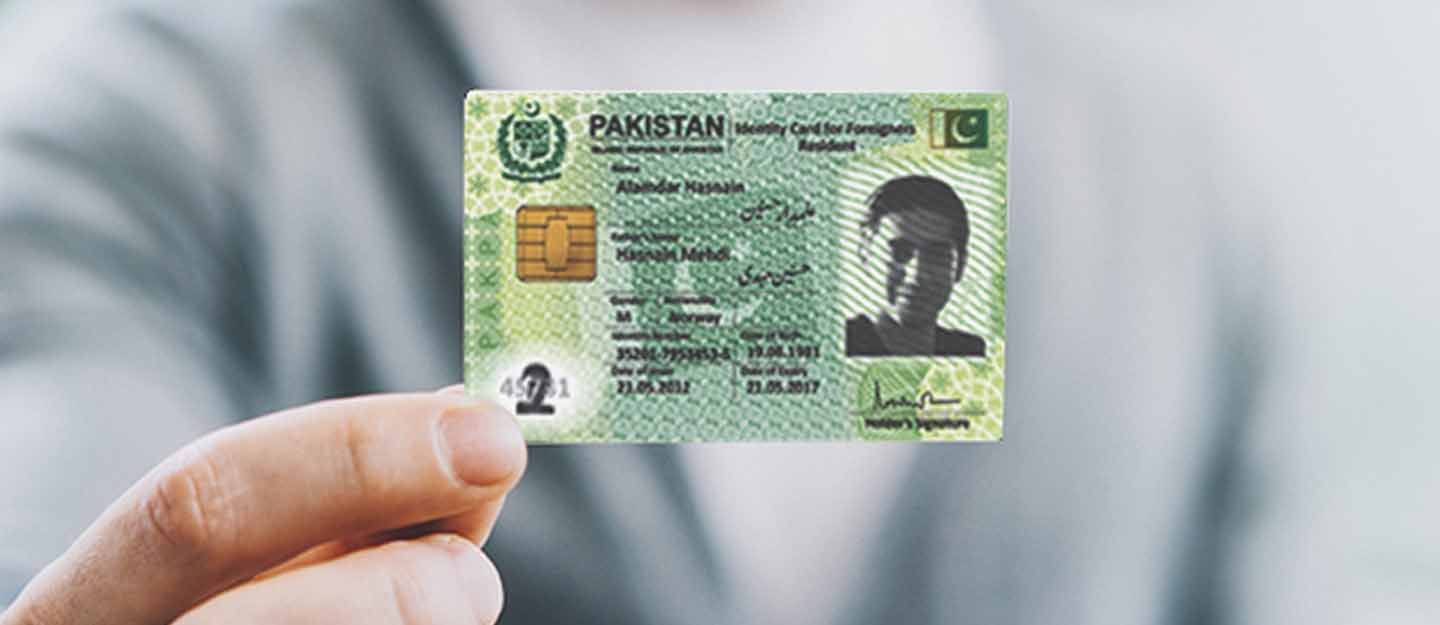
Stuck with a CNIC photo that no longer looks like you? NADRA now lets you fix that from your phone. This guide explains how to change your CNIC photograph through the PakID app, the exact photo rules you need to follow, and what to do if you’d rather visit a NADRA centre.
Why You Might Want to Update Your CNIC Photo
- Your appearance has changed a lot since the photo was taken
- The current photo is blurry, low-resolution, or poorly lit
- You need a clearer, more professional photo for banking, travel, or job applications
- Your card was lost or damaged, giving you a chance to update the photo while you’re at it
How to Change Your CNIC Photo Through the PakID App
NADRA introduced this self-service option in response to citizens asking how to update an old CNIC picture. Here’s the full process:
Step 1: Log In to the PakID App
Open the PakID app and log in using your CNIC number and password.
Step 2: Go to Update Card
After logging in, navigate to the Update Card option on your dashboard.
Step 3: Choose the Photo Update Service
Select the service to change your CNIC photograph.
Step 4: Tap Capture
Tap the Capture option and choose either your phone’s front or back camera.
Step 5: Follow the Photo Guidelines
NADRA has specific rules for the new photo. Make sure:
- Your face is clearly visible, with no shadows and hair away from your eyes
- The background is plain white with proper lighting
- You are not wearing glasses or anything covering your face
- Your face is centered within the circular frame on the screen
- Men may wear a cap or turban, but the full face must be visible
- Women may wear a hijab, but the face and chin must be fully visible
- You keep your face calm and steady while the photo is being captured
The app confirms the photo is acceptable when the circular frame on the screen turns green.
Step 6: Review and Submit
Review the captured image, and if you’re happy with it, submit your request. NADRA will then process the update.
What Happens After You Submit
The process is completely digital, and you don’t need to visit a registration centre for a straightforward photo update. NADRA processes the request and will notify you of the next steps, such as fee payment and delivery, through the app.
When You Might Still Need to Visit a NADRA Centre
While the photo update is designed to be fully online, NADRA notes that biometric verification and photograph capture may require an in-person visit in certain cases, such as:
- If your biometrics have never been captured before, or need to be redone
- If the app repeatedly fails to accept your photo or verify your identity
- If you are combining the photo update with other major changes to your CNIC
If this happens, visit your nearest NADRA Registration Centre with your original CNIC.
Tips for a Photo That Gets Approved the First Time
- Use good, even lighting facing your face, and avoid backlighting from windows.
- Stand against a plain white or light-colored wall if you don’t have a proper background.
- Remove sunglasses, tinted glasses, or anything covering part of your face.
- Keep a neutral expression and look straight at the camera.
- Hold your phone steady, and wait for the frame to turn green before capturing.
Frequently Asked Questions
Can I change my CNIC photo without visiting a NADRA office?
Yes. NADRA’s PakID app lets you capture and submit a new photo directly from your phone in most cases.
What background should I use for my new CNIC photo?
A plain white background with even, proper lighting and no shadows on your face.
Can I wear a hijab or turban in my CNIC photo?
Yes. Women can wear a hijab as long as the face and chin are fully visible, and men can wear a cap or turban as long as the full face is visible.
Why did the app reject my photo?
This usually happens due to shadows, poor lighting, an off-center face, or something covering part of your face. Retake the photo following the guidelines and make sure the circular frame turns green before submitting.
What if the app won’t accept my photo after several tries?
If the online capture keeps failing, visit your nearest NADRA Registration Centre to have your photo and biometrics updated in person.
Updating your CNIC photo no longer means a trip to a NADRA office. With the PakID app, you can capture and submit a fresh photo in a few minutes, as long as you follow NADRA’s photo guidelines carefully.
