


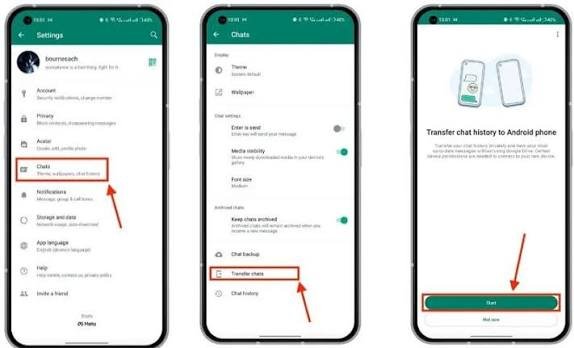
To move WhatsApp to a new phone without losing chats, back up on your old phone first, keep the same phone number, and restore on the new phone before you do anything else. On Android you can restore from your Google Account backup or use WhatsApp’s chat transfer. On iPhone you restore from iCloud. Moving between Android and iPhone is possible, but it needs a new or reset iPhone and Apple’s Move to iOS app. Here are the steps for each case, the rules that can make you lose chats and what I could not confirm.
Before You Start: Five Rules That Protect Your Chats
- Use the same phone number. Google’s help page says you cannot transfer data to a different number. You can change the number on the old phone first.
- Restore before you start chatting on the new phone. Restoring old history replaces any new history on the new phone, and the two cannot be merged, according to Google’s help page.
- Make a fresh backup or keep the old phone working until the new phone shows all your chats.
- Use a stable internet connection, preferably Wi-Fi. WhatsApp notes that backup files vary in size and may use mobile data.
- Do not use other data-migration apps. Google’s page says they are not supported and can cause problems. It also says the transfer is not guaranteed by WhatsApp.
Android to Android: Option 1, Restore From Google Drive
- On the old phone: Open WhatsApp, go to Settings, Chats, Chat backup, and tap Back up. You can also choose a daily schedule and whether to include videos.
- On the new phone: Sign in to the same Google Account, and install WhatsApp from the Play Store.
- Open WhatsApp and verify the same phone number.
- When asked, choose Restore from backup (or Restore) to bring back your chats and media from Google Drive.
- Tap Next when it finishes.
Google’s page recommends the cloud option if you have a recent cloud backup. If you have more than one Google Account, use the same one on both phones. If you turned on end-to-end encrypted backup, you need your password or 64-digit key, which WhatsApp says is the only way to open that backup.
Android to Android: Option 2, Transfer Directly
You can also move chats without a cloud backup. You need both phones, Wi-Fi and WhatsApp on both.
- On the old phone, open WhatsApp and go to Settings, Chats, Transfer chats.
- Tap Start and allow WhatsApp to use Wi-Fi.
- On the new phone, install WhatsApp and set it up with the same number.
- Scan the QR code that appears, and follow the prompts.
On setup, the new phone may offer “Transfer from old phone” over Wi-Fi or “Restore from backup,” according to Google’s help page. Android Authority reported in 2023 that the QR method works only between phones with the same operating system, on the same Wi-Fi network, and that the transfer is encrypted.
iPhone to iPhone
- On the old iPhone: Back up your chats to iCloud in WhatsApp’s Chat backup settings. TechRadar says this works in the same way as Google Drive on Android.
- On the new iPhone: Sign in with the same Apple ID, install WhatsApp and verify the same number.
- Tap Restore Chat History when asked.
The same chat transfer option (Settings, Chats, Transfer chats) is also described for moving chats between two phones with both in hand.
Android to iPhone
This uses Apple’s Move to iOS app, according to MacRumors (2022) and GSMArena. The iPhone must be new or factory-reset.
- Install Move to iOS on the Android phone from the Play Store.
- Set up the new iPhone. On the Apps & Data screen, choose Move Data from Android.
- On the Android phone, open Move to iOS and follow the instructions. Enter the code that appears on the iPhone.
- On the Transfer Data screen, select WhatsApp and tap Start.
- Wait while the data is prepared. The Android phone’s WhatsApp then signs you out.
- When the iPhone setup is done, install WhatsApp from the App Store and sign in with the same number.
MacRumors lists Android 5.0 or later, iOS 15.5 or later and the same Wi-Fi network as requirements. Those figures are from 2022, so check WhatsApp’s help page for the current ones. It also reports that chat history, voice notes and media transfer. GSMArena says call history and peer-to-peer payment messages do not.
iPhone to Android
GSMArena reported in 2022 that WhatsApp supports moving chats from iPhone to Android, but I could not find official steps for it. Google’s page on transferring WhatsApp data says it covers only Android to Android and points to Google’s separate guide on copying apps and data from an iPhone. Use that guide, and check WhatsApp’s help page, before wiping anything.
After the Move
- Check your chats and a few old photos before you wipe or sell the old phone.
- Be patient with photos: Google’s page says images may take time to restore, and to contact WhatsApp support if they are still missing after 24 hours.
- Back up again on the new phone and set a schedule.
- Check linked devices. WhatsApp says backups and restores must be done on your phone, not on WhatsApp Web, Mac or Windows.
Beware of Scams
- Never share your WhatsApp verification code with anyone, even a contact who asks for it.
- Do not install “WhatsApp transfer” or “recovery” tools from unknown sites. Google’s page says other migration apps are not supported.
- Do not pay anyone to move your chats. The steps above are built into WhatsApp.
The first and last points are general advice.
What I Could Not Confirm
- WhatsApp’s own transfer and restore pages. I could read only its Android backup page and a short iPhone page. The steps come from Google’s help page, TechRadar (January 2024), Android Authority (2023), MacRumors (2022) and GSMArena (2022). Menu names and requirements may have changed.
- iPhone to Android steps and current requirements for it.
- The current Android and iOS version requirements for Move to iOS, which are from 2022.
- iCloud storage and iOS requirements for iPhone backups.
- Exactly what is transferred between Android phones. Google’s page says only “chats and data.”
- Whether the QR transfer needs extra permissions such as location or nearby devices. The reports I read do not say.
This is general information, not an official notice. WhatsApp’s help centre is the final authority.
Frequently Asked Questions
How do I move WhatsApp to a new phone without losing chats?
Back up on the old phone, keep the same number, install WhatsApp on the new phone and choose Restore when prompted.
Can I change my number and keep my chats?
Google’s page says you cannot transfer to a different number, but you can change the number on the old phone first.
Can I merge chats from the old and new phone?
No. Restoring the old history replaces any new history on the new phone.
Can I move chats from Android to iPhone?
Yes, with Apple’s Move to iOS app, but the iPhone must be new or factory-reset.
What if my photos are missing after restoring?
Images may take time to restore. If they are still missing after 24 hours, contact WhatsApp support, according to Google’s help page.
Is the transfer guaranteed?
No. Google’s page says WhatsApp does not guarantee that a transfer will succeed.
Keep your old phone and its backup until you have checked everything on the new phone.
