


What Is a Password Manager?
A password manager is a tool that securely stores your passwords in one place. Instead of remembering dozens of passwords, you only need to remember one main password or use your device’s security features to access your saved information.
For example, you can use a password manager to save your Gmail, Facebook, Instagram, banking, and shopping account passwords.
It can also generate strong passwords, fill in login details automatically, and help identify passwords that may have been exposed in a data breach.
If you use both an Android phone and a Windows computer, you can access your saved passwords on both devices by choosing a password manager that supports synchronisation.
Which Password Manager Should You Use?
There are several password managers available, but beginners can start with one of these options.
| Password Manager | Best For |
|---|---|
| Google Password Manager | Android and Chrome users |
| Bitwarden | Users who want to manage passwords across different devices |
| 1Password | Users looking for additional password management features |
| Proton Pass | Users interested in privacy-focused password management |
Our recommendation: Google Password Manager is a simple starting point if you already use an Android phone and Google Chrome on Windows. If you prefer a separate password manager that also works with different browsers, consider Bitwarden.
Method 1: Set Up Google Password Manager on Android
Google Password Manager is built into Android and Google Chrome. You generally do not need to install a separate application to start using it.
Follow these steps:
Step 1: Open Google Chrome
Open Google Chrome on your Android phone.
Make sure you are signed in with your Google Account. This allows your saved passwords to be available across supported devices.
Step 2: Open Password Manager
- Tap the three-dot menu in the top-right corner.
- Select Settings.
- Tap Autofill and passwords.
- Select Google Password Manager.
You will now see the passwords saved to your Google Account.
Step 3: Turn On Password Saving
Open Google Password Manager settings and make sure the option to offer to save passwords is enabled.
When you sign in to a website or application, Chrome can ask whether you want to save your login information.
Tap Save when the prompt appears.
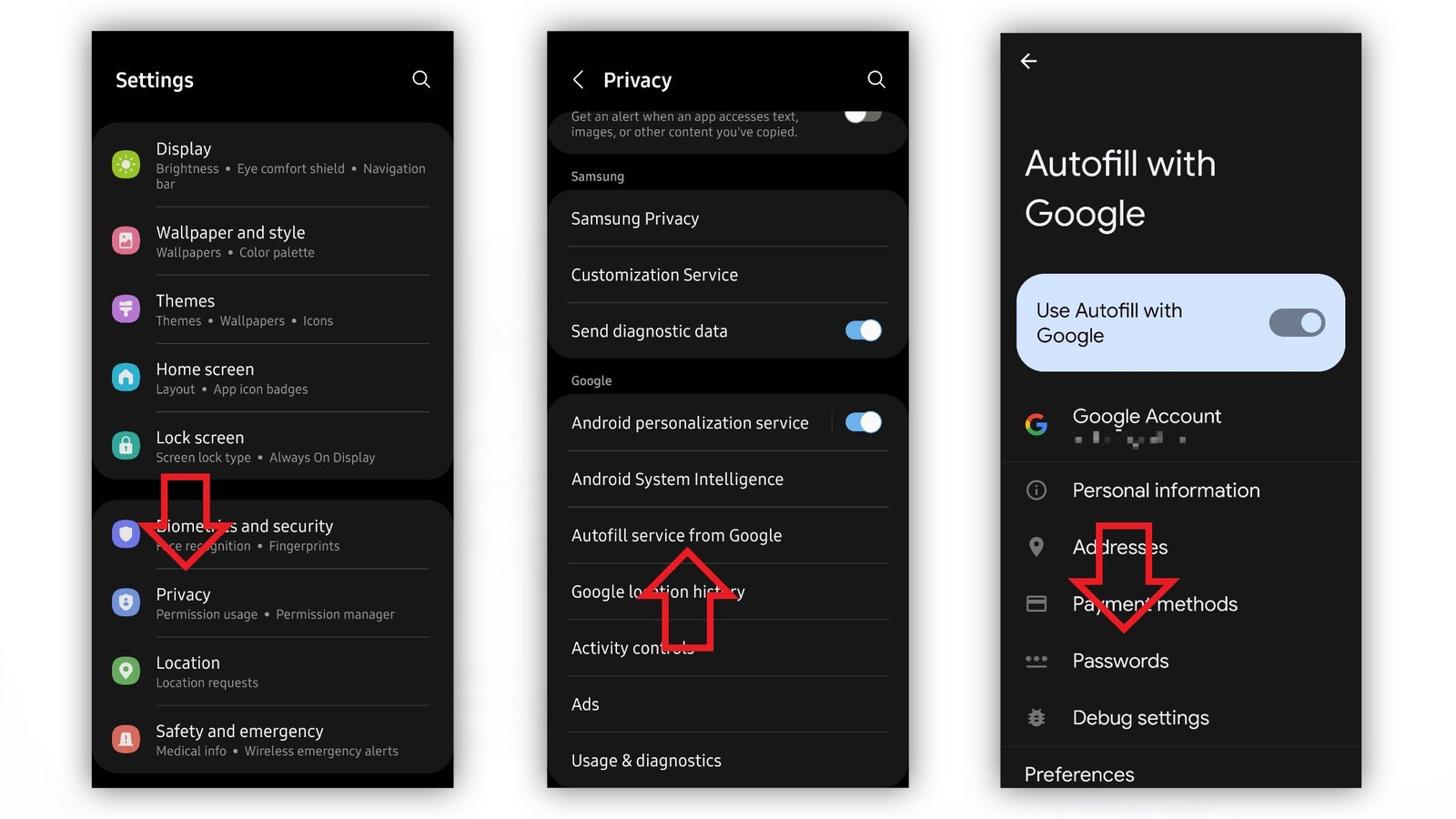
Step 4: Enable Automatic Password Filling
Your Android phone can automatically suggest saved passwords when you visit websites or open applications.
To check your autofill settings:
- Open your phone’s Settings.
- Search for Autofill service.
- Open the autofill settings.
- Select Google as your preferred autofill service, if it is not already selected.
The exact menu names may differ depending on your Android phone and manufacturer.
Step 5: Save Your First Password
Visit a website where you already have an account.
Enter your username and password to sign in. When Chrome asks whether you want to save the password, select Save.
Your login information will now be available through Google Password Manager.
You can also add passwords manually by opening Google Password Manager, selecting Add password, and entering the website, username, and password.
Method 2: Set Up Google Password Manager on Windows
You can also access your saved passwords on a Windows 10 or Windows 11 computer through Google Chrome.
Follow these instructions:
Step 1: Open Google Chrome on Your Computer
Open Chrome on your Windows computer.
If you do not have Chrome installed, download it from the official Google Chrome website.
Step 2: Sign In to Your Google Account
Click the profile icon in the top-right corner of Chrome.
Sign in using the same Google Account that you use on your Android phone.
This is important because your saved passwords need to be associated with the same account to synchronise between devices.
Step 3: Open Google Password Manager
- Click the three-dot menu in Chrome.
- Select Passwords and autofill.
- Click Google Password Manager.
You will now be able to view and manage your saved passwords.
You can also visit the official Google Password Manager website:
Step 4: Turn On Password Saving
Open the Google Password Manager settings.
Make sure the option to offer to save passwords and passkeys is enabled.
You can also enable automatic sign-in if you want Chrome to sign in to supported websites without asking for confirmation each time.
Step 5: Save and Manage Passwords
Whenever you sign in to a new website, Chrome can ask whether you want to save your password.
Select Save to store the login information.
To add a password manually:
- Open Google Password Manager.
- Select Add.
- Enter the website address.
- Add your username and password.
- Click Save.
You can now manage your saved passwords directly from your Windows computer.
Method 3: Set Up Bitwarden on Android and Windows
If you want a password manager that is not limited to Google Chrome, Bitwarden is another option.
It offers an Android application and Windows support through its desktop application and browser extensions.
Step 1: Create a Bitwarden Account
Visit the official website:
Select Get Started and create your account.
Use a strong master password that is difficult for other people to guess but that you can remember.
Your master password protects access to your password vault, so do not share it with anyone.
Step 2: Install Bitwarden on Android
- Open Google Play Store.
- Search for Bitwarden Password Manager.
- Check that the publisher is Bitwarden Inc.
- Install the application.
- Open Bitwarden and sign in to your account.
You can now start adding your website and application passwords.
Step 3: Enable Autofill on Android
To allow Bitwarden to fill in passwords automatically:
- Open the Bitwarden application.
- Go to Settings.
- Select Autofill.
- Open Autofill services.
- Allow Bitwarden to use your saved login information.
- Select Bitwarden as your preferred autofill service when Android asks.
After completing the setup, Bitwarden can suggest saved login details when you open supported applications and websites.
Step 4: Install Bitwarden on Windows
Visit the official Bitwarden website and download the Windows desktop application or browser extension.
For Chrome users, you can install the Bitwarden extension from the Chrome Web Store.
After installation:
- Open Bitwarden.
- Sign in using your account details.
- Unlock your password vault.
- Pin the browser extension to your toolbar for easier access.
Step 5: Save Your Passwords
Open a website and sign in using your existing account.
You can add your login details manually to Bitwarden or use its available save-login prompts.
When you revisit that website, Bitwarden can suggest the matching username and password.
Step 6: Access Your Passwords on Both Devices
Sign in to the same Bitwarden account on your Android phone and Windows computer.
Your password vault can synchronise between supported devices.
You can now save a password on your phone and access it on your computer without manually transferring the information.
How to Move Your Existing Passwords to a Password Manager
If you already have passwords saved in Google Chrome or another browser, you may be able to transfer them to a different password manager.
The process generally involves exporting your saved passwords and importing them into the new service.
Follow these steps:
- Open your existing browser’s password manager.
- Find the password export option.
- Export your passwords as a CSV file, if supported.
- Open your new password manager.
- Find its import option.
- Select the exported file and follow the instructions.
Important security warning: A CSV password file may contain your passwords in readable text. Anyone who gets access to it could see your login details.
Only export passwords on a trusted computer. Do not upload the file to an unknown website, send it through email, or leave it in your Downloads folder. Delete the exported file securely after confirming that the passwords have been imported correctly.
How to Keep Your Password Manager Secure
A password manager can improve your online security, but you should also protect the password vault itself.
Follow these important security tips:
- Create a strong master password: Use a long and unique password that you do not use anywhere else.
- Enable two-factor authentication: Add an extra security step to your password manager account.
- Lock your vault: Set your application to lock automatically after a period of inactivity.
- Protect your devices: Use a PIN, fingerprint, or other supported screen-lock method.
- Avoid suspicious links: Only enter login information on official websites and trusted applications.
- Keep applications updated: Install security updates for your phone, computer, browser, and password manager.
- Save recovery information: Keep recovery codes somewhere secure and separate from your password vault.
Never share your master password or recovery codes with anyone.
Frequently Asked Questions (FAQs)
Can I use the same password manager on Android and Windows?
Yes. Google Password Manager and Bitwarden both support access across Android and Windows. Sign in with the same account and make sure synchronisation is enabled where required.
Is Google Password Manager free?
Yes. Google Password Manager is available without a separate subscription for supported Google Account users.
Is Bitwarden free to use?
Bitwarden offers a free plan with core password management features. It also provides paid plans with additional features.
Do I need to install a password manager on Windows?
Not always. Google Password Manager is available through Chrome and the web. Other services, such as Bitwarden, offer browser extensions and desktop applications.
What happens if I lose my Android phone?
You can access your synchronised passwords from another supported device by signing in to your password manager account. However, you may need to complete account verification or recovery steps.
Can a password manager create strong passwords?
Yes. Most password managers include password generators that create random and unique passwords for your accounts.
Is it safe to save banking passwords in a password manager?
A reputable password manager can securely store banking login information. Use a strong master password, enable two-factor authentication, and only access your bank through its official website or application.
Final Words
Setting up a password manager on Android and Windows is a simple way to improve your online security. You no longer need to remember dozens of passwords or reuse the same password for multiple accounts.
If you are a beginner, Google Password Manager is a convenient option because it works with Android and Chrome. If you want more flexibility across different browsers and devices, Bitwarden is worth considering.
Choose a trusted service, create a strong master password, enable two-factor authentication, and keep your devices protected. These steps can help you manage your online accounts more safely.
