


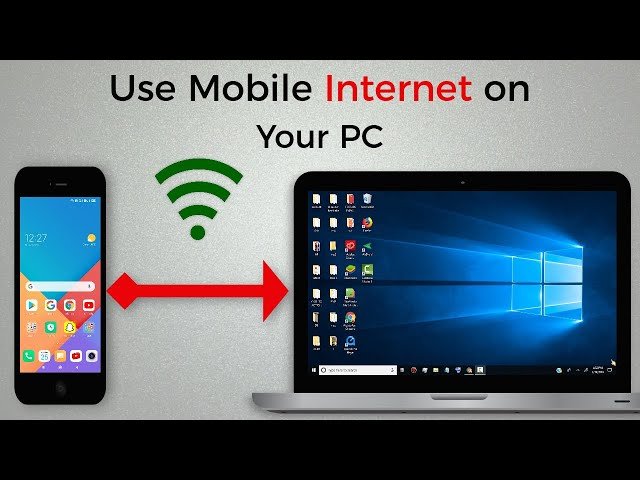
The easiest way to share mobile internet from an Android phone to a laptop is a Wi-Fi hotspot. Open Settings, Network & internet, Hotspot & tethering, Wi-Fi hotspot, turn it on, then pick your phone’s name in the laptop’s Wi-Fi list and enter the password. You can also use USB tethering with a cable, or Bluetooth tethering. Up to 10 devices can join a Wi-Fi hotspot, according to Google. Sharing uses your phone’s mobile data and battery, and some carriers limit or charge extra for it. Here are the steps for each method, safety tips and what I could not confirm.
Before You Start
- Mobile data must be on and working on your phone.
- Turn off Data Saver. Google’s Pixel help page says you must do this to tether by Wi-Fi.
- Check your plan. Google says some carriers limit tethering or charge extra for it. Tethering uses your phone’s mobile data.
- Charge both devices. Google advises plugging them in while tethering.
Method 1: Wi-Fi Hotspot (Easiest)
On your Android phone
- Open Settings, then Network & internet, then Hotspot & tethering, then Wi-Fi hotspot.
- Turn on Wi-Fi hotspot.
- To see or change the network name and password, tap the hotspot entry.
Google’s other help page says you can also swipe down from the top of the screen and tap the Hotspot tile. If it is missing, tap Edit at the bottom left and drag Hotspot into Quick Settings. Touch and hold the tile to open the settings.
On your laptop
- Open the laptop’s Wi-Fi list.
- Select your phone’s hotspot name.
- Enter the password and tap or click Connect.
Google gives no separate laptop steps. The laptop joins like any other Wi-Fi network.
Method 2: USB Tethering
- Connect your phone to the laptop with a USB cable.
- Wait for the “Connected as a…” notification on your phone.
- Open Settings, Network & internet, Hotspot & tethering.
- Turn on USB tethering.
Google says Macs cannot tether with Android by USB. Use the Wi-Fi hotspot instead.
Method 3: Bluetooth Tethering
- Pair your phone with the laptop.
- Set up the laptop to get its network connection over Bluetooth, following its own instructions.
- On your phone, open Settings, Network & internet, Hotspot & tethering and tap Bluetooth tethering.
Google says Macs running macOS Monterey or later cannot tether over Bluetooth.
Which Method to Choose
| Method | Good for | Limits from Google’s pages |
|---|---|---|
| Wi-Fi hotspot | Most laptops, and several devices at once | Up to 10 devices. Data Saver must be off. |
| USB tethering | Using a cable when Wi-Fi is not an option | Not for Macs |
| Bluetooth tethering | When you cannot use the other two | Not for Macs on macOS Monterey or later |
Stay Safe and Save Data
- Keep a password on your hotspot. Google says you can choose None under Security for an open hotspot, which means anyone can join. Do not do this in public.
- Turn it off when you finish. Google recommends turning off connections when done. The hotspot also turns off automatically when no device is connected, and you can change this under Wi-Fi hotspot, Turn off hotspot automatically.
- Watch your data. A laptop can use much more data than a phone, for example through background updates. This is general advice.
- Use a strong, unique password and do not share it. This is general advice.
If It Does Not Work
- Make sure Data Saver is off and mobile data is on.
- Check that your plan or carrier allows tethering.
- Turn the hotspot off and on, and re-enter the password on the laptop.
- Update your Android version. Google says some steps work only on Android 14 and up.
- If the menus look different, your phone maker may use its own. Try the search box in Settings and type “hotspot”.
What I Could Not Confirm
- Other phone brands. The steps are from Google’s Pixel and Android help pages. Samsung, Xiaomi, Oppo, Vivo, Infinix, Tecno and others may use different menu names, and I did not check them.
- Windows laptop steps. Google gives none. I only say that the laptop joins from its Wi-Fi list.
- Pakistani operators. I did not find an official page from Jazz, Zong, Telenor or Ufone on hotspot rules or charges, so I cannot say whether any limits apply. Ask your operator.
- How much data or battery a hotspot uses. Google gives no figures.
- Android version. Google says some steps work only on Android 14 and up, without saying which ones. Older phones may differ.
This is general information, not an official notice. Your phone maker and your mobile company are the final authority.
Frequently Asked Questions
How do I share mobile internet from Android to a laptop?
Turn on Wi-Fi hotspot in Settings, Network & internet, Hotspot & tethering, then join it from the laptop’s Wi-Fi list.
How many devices can connect to my hotspot?
Up to 10 over Wi-Fi, according to Google.
Can I use a USB cable instead?
Yes. Connect the cable and turn on USB tethering. It does not work with Macs.
Why will my hotspot not turn on?
Google says to turn off Data Saver first. Also check that mobile data is on and your plan allows tethering.
Does a hotspot use my mobile data?
Yes. Tethering uses your phone’s mobile data.
Can I remove the hotspot password?
You can, by choosing None under Security, but anyone could then connect. Keep the password.
Will the hotspot turn off by itself?
Yes, it turns off when no device is connected, and you can change that in the hotspot settings.
Turn the hotspot off when you finish, and keep a password on it.
