


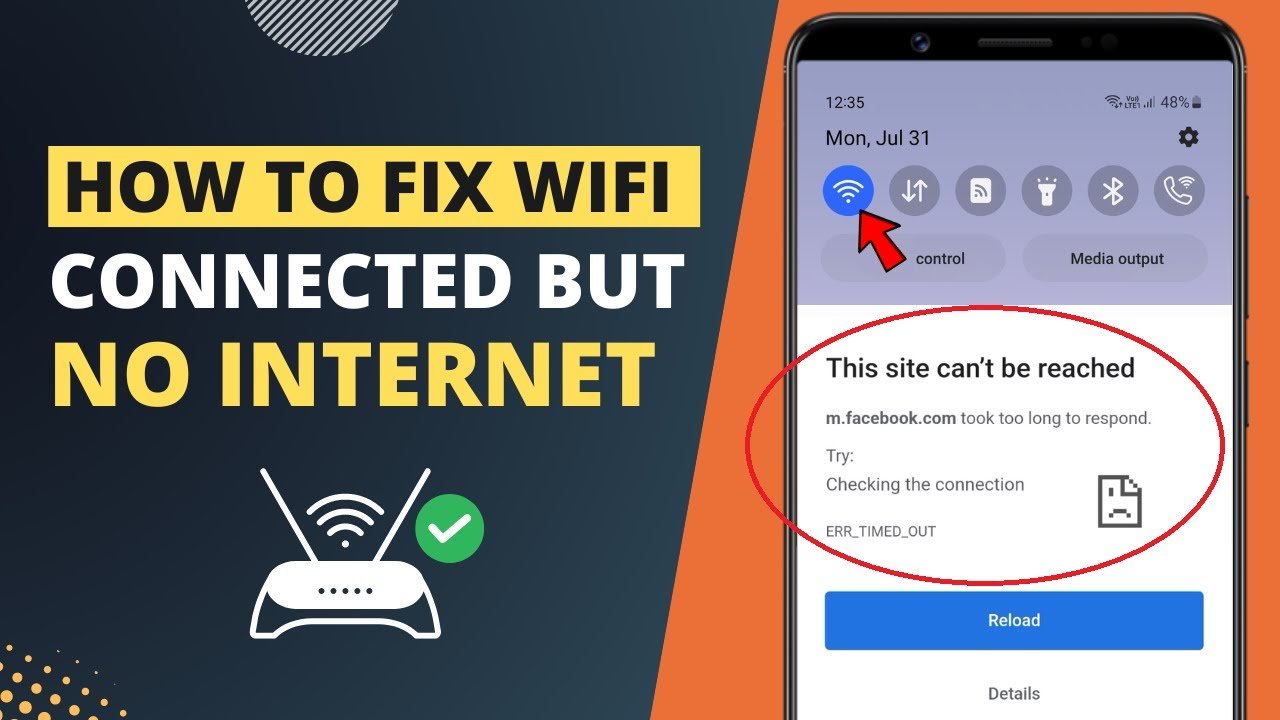
If your phone shows it is connected to Wi-Fi but websites and apps will not load, work through the fixes in order and test a webpage after each one. Turn Wi-Fi off and on, restart the phone, and toggle airplane mode. Then find out whether the problem is your phone, your Wi-Fi network or your internet service, by trying another device and another network. If the phone is at fault, forget the network and add it again, and as a last step reset Bluetooth and Wi-Fi settings. If the router is at fault, restart it. These steps come from Google’s help pages for Pixel and Android. Menu names differ by brand. Here are the steps, how to tell what is wrong, and what I could not confirm.
Step 1: Restart Wi-Fi and Your Phone
- Check that Wi-Fi is on, then turn it off and on again.
- Press and hold the power button for a few seconds and tap Restart.
- Open a webpage to see whether it works.
Step 2: Turn Airplane Mode On and Off
Check that airplane mode is off, then turn it on, wait about 10 seconds and turn it off. Google’s Android page lists this under mobile data problems, so it is a quick try, not a guaranteed Wi-Fi fix.
Step 3: Find Where the Problem Is
| Test | If it works | If it does not |
|---|---|---|
| Connect a laptop or another phone to the same Wi-Fi | The problem is probably your phone | The problem is probably the network or internet |
| Connect your phone to a different Wi-Fi, such as a friend’s | The problem is probably your own network | The problem is probably your phone |
| Phone joins Wi-Fi but still has no internet, and other devices also fail | Not applicable | Most likely your internet connection, according to Google |
You can also compare by turning Wi-Fi off and mobile data on. If mobile data works, the problem is with the Wi-Fi or its internet connection.
Step 4: Forget the Network and Add It Again
Forget
- Open Settings, Network & internet, Internet. Turn on Wi-Fi if needed.
- Tap Saved networks, tap the network, then tap Forget.
Add it again
- Open Settings, Network & internet, Internet, Add network.
- Enter the network name and security details if needed, tap Save, and enter the password if asked.
Make sure you have the Wi-Fi password before you forget the network.
Step 5: Restart the Router and Modem
Only do this if the router is yours.
- Google’s Pixel page says to unplug the router and modem power cords for 15 seconds, plug them back in and check that the cables are secure at both ends. Wait a few minutes for the lights to return to normal.
- Google’s Android page says to unplug the router, wait 30 seconds, plug it back in and wait 30 seconds for the lights to come back.
- If the lights are not normal, contact your internet service provider (ISP).
The two pages give different waiting times. A little longer is not harmful. This is general advice.
Step 6: Reset Bluetooth and Wi-Fi Settings (Last Step)
- Open Settings, System, Reset options.
- Tap Reset Bluetooth & Wi-Fi, then tap Reset settings at the bottom.
I did not find a Google statement of exactly what this clears. It likely removes saved Wi-Fi networks and Bluetooth pairings, so have your Wi-Fi passwords ready. This is general advice.
If You Share a Wi-Fi With Others
- If other phones on the same Wi-Fi also have no internet, restart the router, or ask your ISP.
- If it is a public or office Wi-Fi, Google says to contact the network’s host.
What I Could Not Confirm
- Other phone brands. The menu paths are for Pixel and stock Android. Samsung, Xiaomi, Oppo, Vivo, Infinix, Tecno and other brands may use different names. Google says options depend on your device.
- Android version. Google says some steps work only on Android 8.1 and up. I did not check older phones.
- Other fixes. Changing DNS, checking a sign-in page on public Wi-Fi, setting the date and time, and clearing app data are common suggestions, but I did not find them on the Google pages I opened, so I do not describe them as steps.
- Pakistani ISPs. I did not check PTCL, StormFiber, Nayatel or other providers’ own support steps or outage pages.
- What the reset clears. Google’s page does not say.
This is general information, not an official notice. Your phone maker and your internet provider are the final authority.
Frequently Asked Questions
Why does my phone say it is connected to Wi-Fi but there is no internet?
The phone has joined the network, but the network may have no working internet, or the phone has a problem. Try another device and another network to find out.
What should I try first?
Turn Wi-Fi off and on, restart the phone, then test a webpage.
How do I forget a Wi-Fi network?
Settings, Network & internet, Internet, Saved networks, tap the network, then Forget.
Should I restart my router?
Yes, if it is yours. Unplug it, wait and plug it back in. Contact your ISP if the lights stay abnormal.
How do I know if it is my phone?
If another device works on the same Wi-Fi, or your phone works on another network, the problem is likely your phone or your network respectively.
What does Reset Bluetooth & Wi-Fi do?
It resets those settings. Google does not list exactly what is cleared, so keep your Wi-Fi passwords handy.
What if mobile data works but Wi-Fi does not?
Then your phone is fine for data, and the problem is probably the Wi-Fi network or its internet connection.
Test a webpage after each step, and contact your internet provider if no device can get online.
