


Windows 11 has quietly turned into one of the biggest AI platforms most people use every day. Microsoft has been rolling out new AI features in Windows 11 through regular updates in 2026, adding tools that help you search faster, edit photos, get live translations, and even let AI agents complete small tasks on your behalf. If you haven’t checked your Settings app in a while, there’s a good chance you’re sitting on features you didn’t know existed.
Here’s a complete, up-to-date look at the latest AI features in Windows 11, what they actually do, and which ones need special “Copilot+ PC” hardware to run.
1. Ask Copilot on the Taskbar
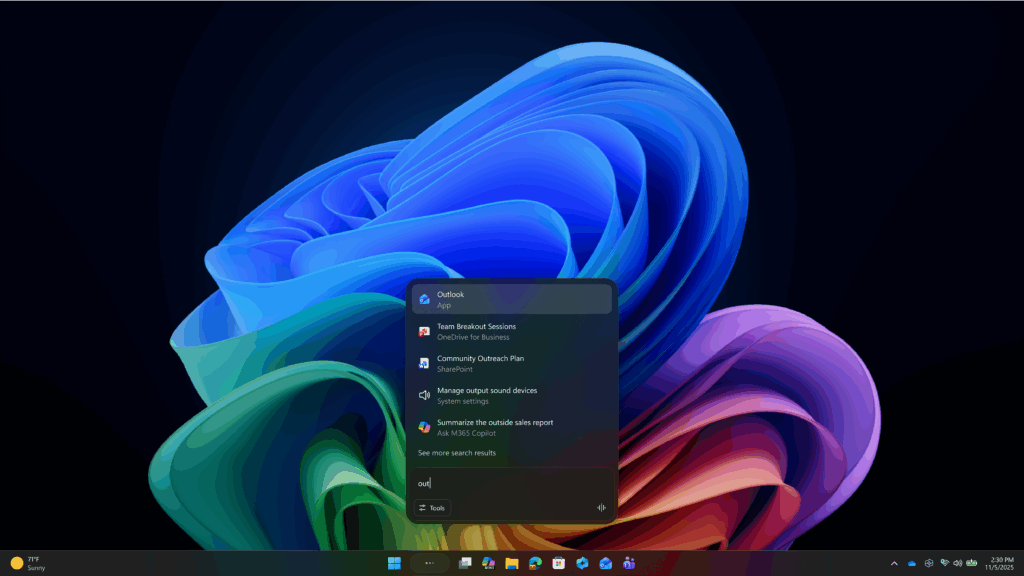
Copilot is now built directly into Windows Search on the taskbar. Instead of typing a keyword and hoping Windows finds the right file or setting, you can type a full question in plain language, and Copilot will understand the intent behind it. It can answer general questions, summarize information, help you find a setting buried three menus deep, or hand off a task to a specialized AI agent.
This works on any Windows 11 PC, but it responds noticeably faster on Copilot+ PCs that have a dedicated Neural Processing Unit (NPU) for on-device processing.
2. Recall: Your Searchable Activity Timeline
Recall is one of the most talked-about AI features in Windows 11. On supported Copilot+ PCs, it takes periodic encrypted snapshots of your screen activity and indexes them locally, so you can later search for something you remember seeing but can’t quite locate again — like “the invoice I opened last Tuesday” or “the recipe website with the pasta dish.”
- Recall is off by default; you must turn it on manually.
- All processing and storage happens on-device, not in the cloud.
- You can pause Recall, filter out specific apps and websites, or delete snapshots at any time.
- Windows Hello (face, fingerprint, or PIN) is required to open and search your Recall timeline.
- IT administrators can disable Recall by default on company-managed PCs.
Recent updates have also added an easier way to export and reset Recall data, giving users more direct control over what’s stored.
3. Click to Do: Instant Actions on Anything On-Screen
Click to Do lets you act on text or images without switching apps. Hold the Windows key and click on something on your screen — a paragraph, a photo, an email address — and a menu of relevant AI actions appears instantly.
Depending on what you select, Click to Do can:
- Summarize or rewrite selected text
- Copy text or images straight to the clipboard
- Remove the background from a photo using Paint
- Send selected content to Copilot or Microsoft 365 Copilot for follow-up questions
- Suggest scheduling a Teams meeting when you select an email address
Click to Do is available system-wide, through the Snipping Tool, Print Screen, or by searching for it directly in Windows Search.
4. Live Captions with Real-Time Translation
Live Captions can caption any audio playing on your PC — a video call, podcast, or YouTube clip — in real time. The standout upgrade is translation: Windows can now translate spoken audio from dozens of languages into your preferred language on the fly, so you can follow a call or video in a language you don’t speak.
5. Windows Studio Effects and Photo Tools
Built into the Camera app and video calling apps, Windows Studio Effects uses AI to automatically improve your webcam feed with background blur, eye contact correction, and automatic framing. On the photo side, the Photos app includes AI-powered background removal, object erasing, and image upscaling (Super Resolution) for cleaning up or enlarging pictures without third-party software.
6. Agentic Features: Copilot Actions and Agents on the Taskbar
The newest layer of AI features in Windows 11 is agentic — meaning the AI doesn’t just answer questions, it can take actions for you. Copilot Actions (currently experimental and off by default) can organize files, draft emails, or handle scheduling tasks when you enable it. Meanwhile, “Agents on the Taskbar” lets registered AI agents — first-party ones like Microsoft 365 Copilot’s Researcher and Analyst agents, as well as select third-party agents — run and interact directly from the taskbar, similar to regular apps.
Microsoft has kept these features opt-in, reflecting ongoing feedback about giving users clear control over what AI can access and act on.
7. More Control Over AI Components
A notable change in the August 2026 update is the ability to fully remove individual built-in AI components — such as the Image Generation model — from a Copilot+ PC instead of just hiding the shortcut. This frees up storage and system resources for anyone who doesn’t use a specific AI tool, though Windows still doesn’t offer a single master switch to turn off all AI features at once.
Which AI Features Need a Copilot+ PC?
Not every AI feature in Windows 11 needs special hardware. Cloud-based features work on any internet-connected PC, while the more advanced, on-device features require a Copilot+ PC with an NPU rated at 40+ TOPS.
| Feature | Standard Windows 11 PC | Copilot+ PC |
|---|---|---|
| Ask Copilot (taskbar) | Yes (cloud-based) | Yes (faster, on-device) |
| Recall | Not available | Available (off by default) |
| Click to Do | Not available | Available |
| Live Captions Translation | Limited | Full, low-latency support |
| Windows Studio Effects | Basic effects only | Advanced local effects |
| Cocreator / Image Generation | Not available | Available |
Do You Need to Buy New Hardware?
No — most people can use core AI features in Windows 11, including Ask Copilot, Live Captions, and basic photo editing tools, on their existing PC as long as it’s running an updated, supported version of Windows 11. A Copilot+ PC only becomes necessary if you specifically want Recall, Click to Do, or the fastest, fully offline AI experience.
Final Thoughts
Microsoft is steadily expanding the AI features in Windows 11 with nearly every monthly and feature update, shifting from simple chat-based help toward AI that can search your past activity, act on what’s on your screen, and even complete tasks independently. Whether or not you own a Copilot+ PC, it’s worth spending a few minutes in Settings to see which of these tools are already switched on — and which ones might genuinely save you time.
