


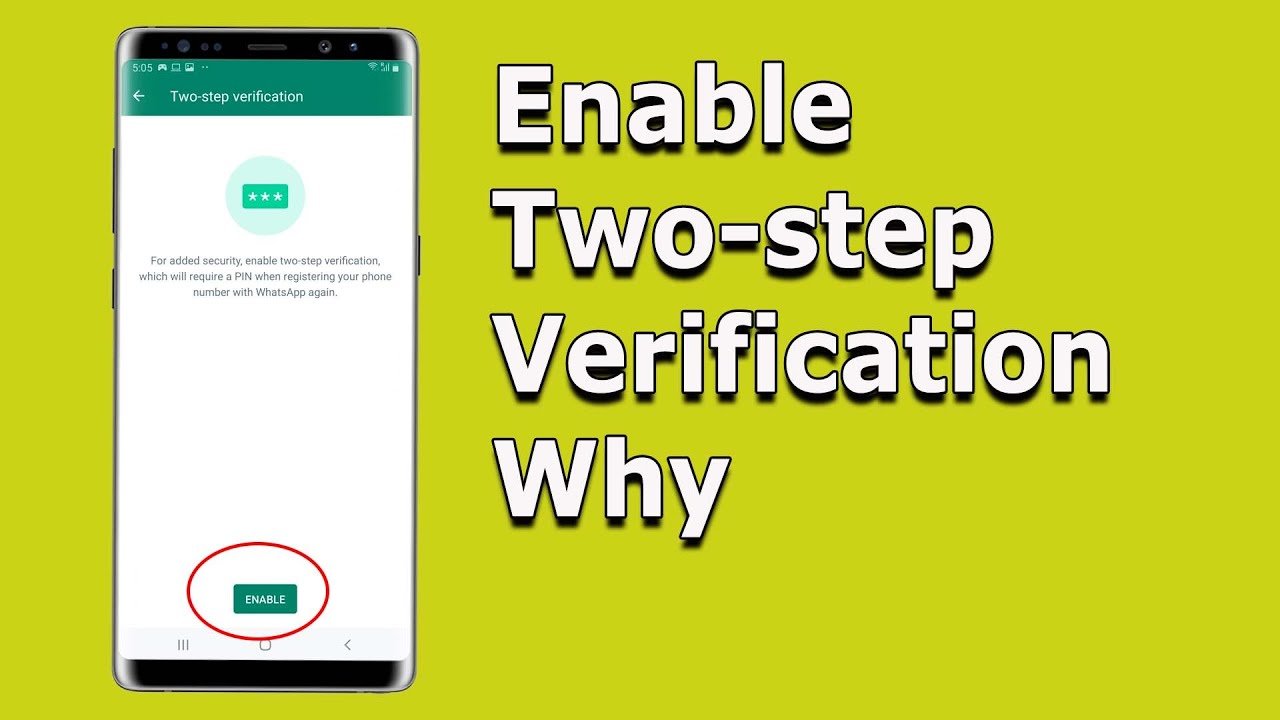
Anyone who tricks you into sharing a six-digit SMS code can take over your WhatsApp account in seconds. Then they message your family and friends and ask for money. The strongest protection is free and takes two minutes. Here is how to turn on two-step verification for WhatsApp, how to choose a safe PIN, and what to do if you forget it.
What Is Two-Step Verification on WhatsApp?
Two-step verification is an optional feature that adds a second lock to your account. You create your own six-digit PIN. Whenever someone tries to register your phone number on WhatsApp, they must enter that PIN as well as the SMS code.
This PIN is different from the six-digit registration code that WhatsApp sends by SMS or phone call. If a scammer gets the SMS code from you, they still cannot enter your account without the PIN.
How to Turn On Two-Step Verification for WhatsApp
The steps are almost the same on Android and iPhone.
- Open WhatsApp.
- On Android, tap the three dots at the top right and select Settings. On iPhone, tap Settings at the bottom right.
- Tap Account.
- Tap Two-step verification.
- Tap Turn on or Enable.
- Enter a six-digit PIN of your choice, then enter it again to confirm.
- Add an email address you can access, or tap Skip.
- Confirm the email address if you added one, and tap Save or Done.
If you add an email, WhatsApp may send a verification code to it. Enter that code to finish. On some versions, menu names may differ slightly. If you cannot see the option, update WhatsApp from the Play Store or App Store.
Why You Should Add a Recovery Email
The email is optional, but it is very useful. If you forget your PIN, WhatsApp can send a reset link to that address. Without an email, you may have to wait seven days before you can reset the PIN.
Use an email account that is secure, with a strong password and its own two-step protection. A weak email account could weaken your WhatsApp security.
How to Choose a Good PIN
- Do not use your birthday, phone number, or a simple pattern like 123456.
- Do not use the same PIN as your bank card or wallet MPIN.
- Choose six digits you can remember without writing them on your phone.
- Never share the PIN with anyone, even someone claiming to be from WhatsApp.
WhatsApp will ask you to enter the PIN from time to time as a reminder. According to WhatsApp, you will get a reminder about once a week as long as you do not reset the PIN. This is normal, and you cannot turn the reminders off without disabling the feature.
What Happens After You Turn It On
| Situation | What to Expect |
|---|---|
| You set up WhatsApp on a new phone | You enter the SMS code and then your PIN |
| A scammer gets your SMS code | They are blocked because they do not know your PIN |
| You forget your PIN and added an email | You can request a reset link by email |
| You forget your PIN and have no email | You must wait seven days before you can reset it |
| You delete and reinstall WhatsApp | The PIN stays active, so you still need it |
How to Reset a Forgotten PIN
If you added an email
- Open WhatsApp and tap Forgot PIN?
- Tap Send email.
- Open the email on your phone and follow the reset link, then tap Confirm.
- Return to WhatsApp, tap Forgot PIN? again, and tap Reset.
If you did not add an email
You must wait seven days. The seven-day period starts from the last time your account successfully connected to WhatsApp. After that, open WhatsApp, tap Forgot PIN?, and then Reset. Pending messages may be deleted when you reverify.
Also note that older guides report that an account can be deleted if you try to re-register without the passcode after 30 days of inactivity. Do not leave the app unused for a long time if you cannot recall your PIN.
Beware of Fake Reset Emails
Scammers sometimes send emails claiming to be from WhatsApp, asking you to disable two-step verification. If you did not request a reset, do not click any link in that email. Someone may be trying to attack your account. Always start a reset yourself from inside the app.
How to Change or Turn Off the PIN
- Change the PIN: go to Settings, Account, Two-step verification, and tap Change PIN.
- Change the email: use Change email address in the same menu.
- Turn it off: tap Turn off or Disable and confirm. We do not recommend this, because it removes your best protection.
Other Ways to Protect Your WhatsApp Account
- Never share a six-digit code with anyone, even a friend.
- Check Linked devices regularly, and log out of any you do not recognise.
- Set who can add you to groups under Privacy, Groups.
- Use Silence unknown callers under Privacy, Calls.
- Keep WhatsApp and your phone updated.
- Learn the signs of a scam message. See our guide on how to check whether a WhatsApp message is a scam.
- To stop strangers adding you to groups, read our guide on how to stop unknown numbers adding you to WhatsApp groups.
If Your Account Is Already Hacked
- Re-register your number with the SMS code on your own phone. This logs the attacker out.
- Turn on two-step verification right away.
- Warn your contacts that messages from you were fake.
- Check Linked devices and remove any you do not recognise.
- Report the incident to the cybercrime authorities if money was lost.
Frequently Asked Questions
Is two-step verification on WhatsApp free?
Yes. It is a free built-in security feature.
Is the PIN the same as the SMS code?
No. The SMS code is a one-time registration code. The PIN is a six-digit passcode that you create yourself.
What if I forget my PIN?
Tap Forgot PIN? and request a reset email if you added one. If not, wait seven days.
Will deleting WhatsApp remove the PIN?
No. Deleting or reinstalling the app does not disable the PIN.
Do I need to add an email?
It is optional, but strongly recommended for easy recovery.
Conclusion
To turn on two-step verification for WhatsApp, go to Settings, Account, Two-step verification, create a six-digit PIN, and add a secure recovery email. It takes two minutes and blocks most account takeovers. Keep your PIN private, ignore unrequested reset emails, and check your settings every few months. WhatsApp menus can change, so check the in-app options if a step looks different. For more practical guides, keep following Pakistan Post. You can also read WhatsApp’s own page on two-step verification.
