


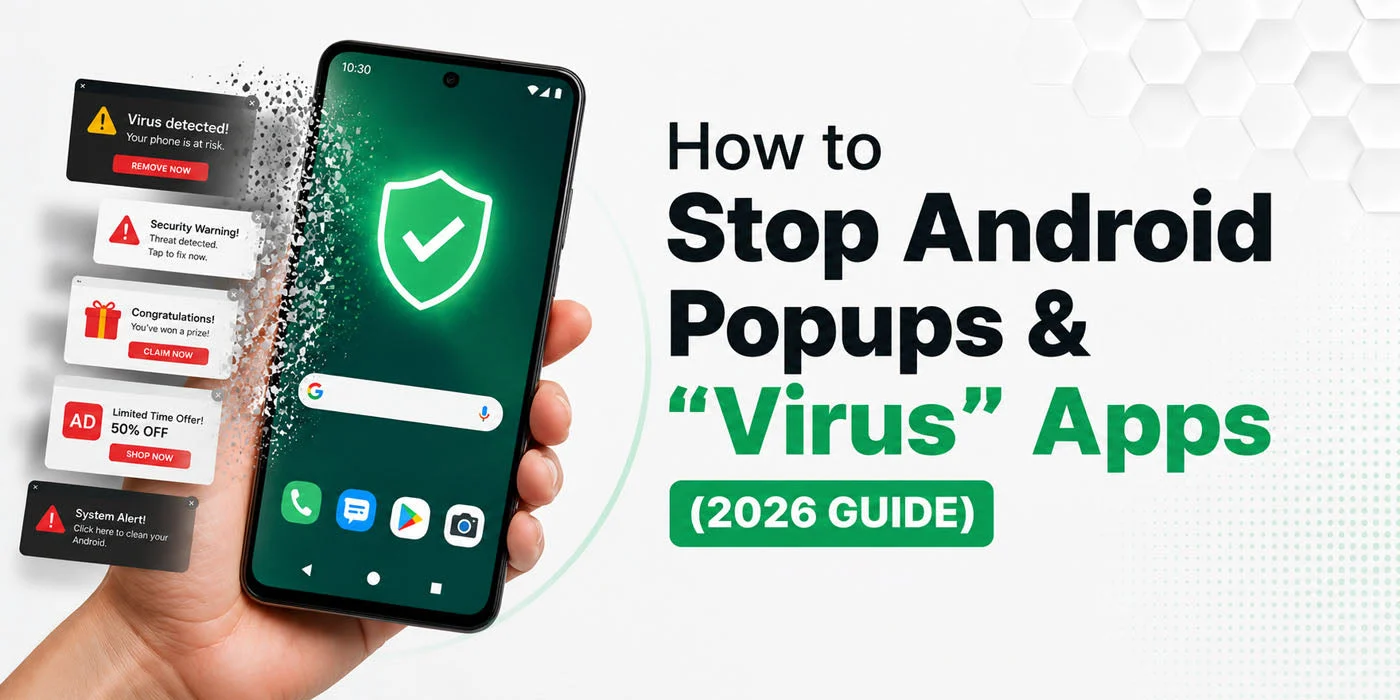
To remove malware-like apps and pop-up ads on Android, first find out whether the ads come from your browser or from an app, then remove the cause. Make sure Google Play Protect is on and uninstall anything it flags. Restart in Safe mode and uninstall apps you do not recognise, and turn off a stubborn app’s device admin rights before removing it. In Chrome, block pop-ups and redirects and stop notifications from spammy sites. Factory reset is the last resort, and you must back up first. These steps use Google’s help pages and a June 2026 Beebom guide. Menu names differ by phone brand. Here are the signs, the steps in order, how to stay safe and what I could not confirm.
Signs of Unwanted Software
Google’s Chrome help page lists these signs of unwanted software:
- Pop-up ads and new tabs that will not go away
- Your homepage or search engine changes without your permission
- Unwanted extensions or toolbars keep returning
- Your browsing redirects to unfamiliar pages or ads
- Alerts about a virus or an infected device
That page is written for Chrome on computers, but the signs apply to a phone too. A “your phone is infected” pop-up on a web page is itself a warning sign, not proof that the phone is infected. This last point is general advice.
Step 1: Stop Using the Phone for Banking and Passwords
Until you have cleaned it, avoid banking apps, wallet apps and entering important passwords. This is general advice.
Step 2: Check Google Play Protect
- Open the Google Play Store app and tap your profile icon at the top right.
- Tap Play Protect, then Settings.
- Turn on Scan apps with Play Protect.
- Turn on Improve harmful app detection, which lets Play Protect send unknown apps to Google.
Google says Play Protect checks apps when you install them and scans your device periodically. When it finds a harmful app it may notify you, and you can tap Uninstall. It may also disable the app until you uninstall it, or remove it automatically. Google’s page does not describe a manual scan button, though a June 2026 Beebom guide says you can tap Scan on the Play Protect screen. Your version may differ.
Step 3: Find the Source of the Pop-Ups
| What you see | Likely source | What to do |
|---|---|---|
| Ads and new tabs only while you use Chrome or a website | A website or a site’s notifications | Go to Step 4 |
| Ads appear on your home screen or inside unrelated apps | Possibly an app you installed | Go to Steps 5 and 6 |
| You cannot tell | Unknown | Do Step 4, then Step 5 |
Google says notifications or malware can cause continued pop-ups, so check for both. I did not find an official Google step to identify which app is showing an ad.
Step 4: Block Pop-Ups and Notifications in Chrome
Block pop-ups and redirects
- Open Chrome and tap More (the three dots), then Settings.
- Tap Site settings, then Pop-ups and redirects.
- Turn Pop-ups and redirects off to block them.
Stop notifications from a site
- Open Chrome and go to the site.
- Tap the site info icon to the left of the address bar, then Permissions.
- Change the notifications setting to block the site.
When a site asks “Get notifications?”, Google says to tap the Settings icon, then Don’t allow. Never tap Allow on a site you do not trust. This last point is general advice.
Step 5: Restart in Safe Mode and Uninstall Suspicious Apps
These steps are from the Beebom guide (17 June 2026), not from Google.
- Press and hold the Power and Volume Up buttons to open the Power menu.
- Press and hold Power off until the Safe mode prompt appears, then tap it.
- In Safe mode, only system apps run. Open your app drawer and uninstall apps you do not recognise.
- Restart the phone to leave Safe mode.
Safe mode buttons differ by phone brand, so check your phone’s manual. Before uninstalling, think about which apps you installed recently. This last point is general advice.
Step 6: If an App Will Not Uninstall
Beebom says to go to Settings, Security & privacy, More security & privacy, Device admin apps, select the suspicious app and tap Deactivate. You can then uninstall it. Menu names differ by phone.
Step 7: Clear Browser Data
Beebom says to open Chrome, tap the three-dot menu, then Delete browsing data, then More options. Set the time range to All time, untick Browsing history and keep the cache option, then tap Delete data.
Step 8: Factory Reset (Last Resort)
- Back up first. Photos and contacts can be saved to your Google Account, for example.
- Open Settings, System, Reset options and tap Erase all data (factory reset), then confirm. These steps are from Beebom.
A factory reset erases the phone. Restore only what you need, and do not restore apps you do not trust.
How to Avoid It Next Time
- Google’s Chrome page advises caution with sites offering free prizes or copyrighted content, and with password-protected archives.
- Google also says not to download files from sites that do not use HTTPS, and not to click suspicious program-update pop-ups.
- Install apps from Google Play and check an app’s reviews and permissions first. This is general advice.
- Be careful with apps that ask for “Install unknown apps” permission or send you APK files by WhatsApp. This is general advice.
- Keep Play Protect on, and keep Android and Chrome updated. Google recommends keeping Play Protect on.
What I Could Not Confirm
- Safe mode, device admin and factory reset steps. They come from one third-party guide, Beebom (June 2026), and I did not find them on a Google page I opened. They differ by phone brand.
- Other phone brands. I did not check Samsung, Xiaomi, Oppo, Vivo, Infinix or Tecno menus.
- How to find which app shows ads. I did not find an official step.
- Third-party antivirus or cleaner apps. I did not test or compare them, and I do not recommend any. Be careful, because some apps that promise to remove viruses show ads themselves. This is general advice.
- Chrome Android steps for removing malware. Google’s “Remove unwanted ads, pop-ups & malware” page that I opened covers desktop Chrome, so I used it only for the signs and safety advice.
- Whether a pop-up means real infection. Most sources I opened do not say how often it does.
- Pakistan-specific reporting. I did not check local scams that use fake apps or links.
This is general information, not an official notice. If your phone still behaves oddly after a factory reset, take it to the phone maker’s service centre.
Frequently Asked Questions
How do I remove pop-up ads on Android?
Find the source. In Chrome, block pop-ups and notifications. If the ads appear in other apps, check Play Protect and uninstall suspicious apps in Safe mode.
How do I turn on Play Protect?
Open Play Store, tap your profile icon, tap Play Protect, then Settings, and turn on Scan apps with Play Protect.
What if an app will not uninstall?
Beebom says to deactivate it under Device admin apps, then uninstall it.
How do I block pop-ups in Chrome on Android?
Chrome, three dots, Settings, Site settings, Pop-ups and redirects, and turn it off.
Does a “your phone has a virus” pop-up mean I am infected?
Not necessarily, but Google lists virus alerts as a sign of unwanted software. Do not call numbers or install apps from such pop-ups.
Should I factory reset my phone?
Only as a last resort, after backing up. It erases the phone.
Do I need an antivirus app?
I cannot say. Google recommends keeping Play Protect on, and I did not test other apps.
Keep Play Protect on, install apps only from sources you trust, and never tap Allow on suspicious notification requests.
