


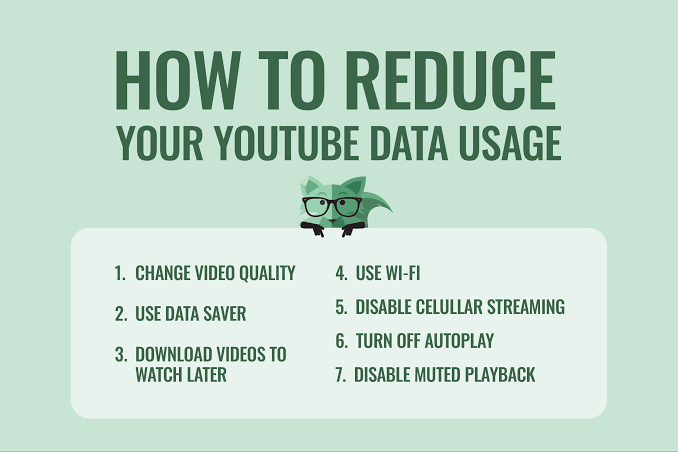
To reduce mobile data use while watching videos, lower the video quality, set your video apps to a data-saving mode, download videos on Wi-Fi to watch later, and set a data warning on your phone. On YouTube, tap your profile picture, then Settings, then Video quality preferences, and choose Data saver. On Netflix, go to My Netflix, your profile, App Settings, Video Playback, then Cellular Data Usage, and choose Save Data or Wi-Fi Only. Netflix says its Save Data setting gives about 6 hours of video per GB, while Maximum Data uses about 1 GB per 20 minutes or more. Here are the steps for each app, phone settings that help and what I could not confirm.
Why Video Uses So Much Data
Video is one of the biggest uses of mobile data, because higher picture quality means more data. YouTube says its Higher picture quality setting “uses more data”. Netflix’s own figures show how much quality matters: about 6 hours per GB on Save Data, about 4 hours per GB on Automatic, and about 1 GB per 20 minutes on Maximum Data.
YouTube
Change quality for one video
- In the video player, tap the Settings (gear) icon.
- Tap Quality.
- Choose Data saver. The other options are Auto (recommended), Higher picture quality and Advanced.
Change the default for all videos
- Tap your profile picture.
- Tap Settings, then Video quality preferences.
- Choose Data saver.
Google’s help page says Data saver lowers picture quality so videos may start faster, and describes one choice that covers mobile networks and Wi-Fi. If your app shows separate settings for mobile data and Wi-Fi, set the mobile one to Data saver. This is general advice.
A September 2026 article from K24 also suggests choosing a lower resolution such as 360p or 480p in the player’s Quality menu, and turning off autoplay so the next video does not start by itself. I did not find the resolution or autoplay tips on Google’s page.
Netflix
- Open the Netflix app and tap My Netflix in the lower right.
- Tap your profile name at the top, then App Settings.
- Under Video Playback, tap Cellular Data Usage.
- Choose a setting and tap OK if asked.
| Setting | What Netflix says |
|---|---|
| Wi-Fi Only | Streaming works only over Wi-Fi |
| Save Data | About 6 hours per GB |
| Automatic | Balances data use and quality, about 4 hours per GB |
| Maximum Data | Highest quality, about 1 GB per 20 minutes or more. Netflix recommends it only with unlimited data. |
On the same settings screen, under Downloads, turn on Wi-Fi Only so downloads do not use mobile data. If the setting is grayed out, Netflix says to turn off Automatic or finish or cancel pending downloads.
TikTok and Other Apps
- K24 says TikTok has a Data Saver option under Settings and privacy, and that its location may differ by app version. I could not open TikTok’s own help page, so I cannot confirm the exact menu or what it does.
- For Facebook, Instagram, WhatsApp and other apps, look for a “data saver”, “use less data” or “video autoplay” option in the app’s settings. I did not confirm the names or steps in each app.
Download on Wi-Fi, Watch Later
- K24 suggests saving videos for offline viewing on Wi-Fi before you travel. It says availability depends on the video, the place and your account.
- On Netflix, turn on Downloads, Wi-Fi Only, as shown above.
- I did not find a Google statement on YouTube downloads, so I give no steps for them.
Phone Settings That Help
- Data Saver (Android): Settings, Network & internet, Data Saver. Google says it lets most apps use background data only on Wi-Fi. Apps you have open can still use mobile data, so it will not cut data from the video you are watching.
- Data warning: Settings, Network & internet, SIMs, Data warning & limit. Google says you get a notification when you reach the level you set.
- Check which apps use the most data: Settings, Network & internet, SIMs, App data usage.
- Use Wi-Fi for long videos and live streams. K24 gives the same advice.
These Android steps are for Pixel and stock Android, and menu names differ by phone brand.
Simple Habits That Save Data
- Use the lowest quality that still looks fine on a small screen. This is general advice.
- Turn off autoplay so the next video does not start without you. This is a K24 tip.
- Close the video app when you finish, and do not leave videos playing in the background. This is general advice.
- Check your data use every week or so, so you know which app is the problem.
What I Could Not Confirm
- Other phone brands and app versions. The Android steps are for Pixel and stock Android. YouTube and Netflix menus change between app versions.
- TikTok, Facebook, Instagram and WhatsApp. I found no official page I could open for them. The TikTok tip comes from one article.
- How much data each YouTube setting uses. Google’s page gives no figures. The Netflix figures are Netflix’s own and may vary by video.
- YouTube downloads and autoplay. I found these tips only in the K24 article, not on Google’s page.
- Pakistani operators. I did not check whether Jazz, Zong, Telenor or Ufone offer video bundles, free-streaming packages or throttle video, so I say nothing about them.
This is general information, not an official notice. The apps and your mobile company are the final authority.
Frequently Asked Questions
How do I use less data on YouTube?
Tap your profile picture, then Settings, then Video quality preferences, and choose Data saver.
Does Data saver make videos look worse?
Yes. Google says Data saver lowers picture quality.
How much data does Netflix use?
Netflix says about 6 hours per GB on Save Data, 4 hours per GB on Automatic, and 1 GB per 20 minutes or more on Maximum Data.
How do I stop Netflix using mobile data?
Choose Wi-Fi Only under Cellular Data Usage in App Settings.
Will Android Data Saver cut video data?
Not for the video you are watching. Google says apps you have open can still use mobile data.
Can I download videos on Wi-Fi?
On Netflix, yes, and you can make downloads Wi-Fi only. Availability for other apps varies.
How do I know which app uses the most data?
Open Settings, Network & internet, SIMs, then App data usage.
Set a data warning, choose a lower video quality and download on Wi-Fi to make your data last longer.
