


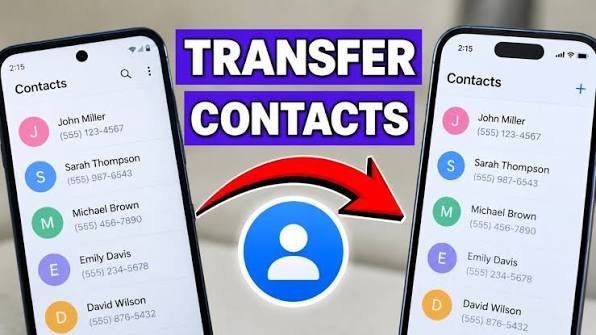
The easiest way to transfer contacts from an old Android phone is to save them to your Google Account and sign in to the same account on the new phone. On the old phone, open Settings, then Google, then All services, then Google Contacts sync, choose your account and turn on Backup device-only & SIM contacts automatically. On the new phone, sign in with the same Google Account and your contacts sync. If you cannot sign in, export your contacts to a .vcf file and import it on the new phone. Menu names differ by phone brand and app version. Here are both methods, the SIM-card case, a checklist and what I could not confirm.
Method 1: Sync Through Your Google Account (Best)
On the old phone
- Open Settings.
- Tap your profile photo or icon, then All services. If you do not see it, go to Settings, Google, All services.
- Under “Backup & restore,” tap Google Contacts sync.
- Select the Google Account that should receive your contacts. Google says only one account can receive automatically saved contacts.
- Tap View settings.
- Under “Sync options,” turn on Backup device-only & SIM contacts automatically.
Wait a few minutes with an internet connection. Then open contacts.google.com on a computer, or in a browser, signed in to the same account, and check that your contacts are there. This check is general advice.
On the new phone
- Sign in to the same Google Account while setting up the phone, or later in Settings.
- Google says your Google contacts then sync to the new device.
Google’s Limits to Know
- You cannot back up contacts to a child’s account or a Google Workspace (work or school) account.
- Automatic backup depends on your device’s make and model.
- Contacts from other services, such as Exchange or Yahoo, cannot be saved automatically. Import them manually.
- Signing out of a device removes its Google contacts from that device, but they stay in your account.
- Turning the setting off stops future automatic saving. Contacts already saved remain until you remove them.
Contacts Saved on the SIM Card
Google’s page has no separate SIM step. It says that once the backup setting above is on, existing SIM contacts are saved to your Google Account, and so are ones you add later. Do this on the old phone while the SIM is still in it.
Method 2: Export and Import a .vcf File
Use this if you cannot sign in to the account, or if the old phone is not syncing. These steps come from a 2020 Android Central guide, updated in June 2023, so your menu may look different.
On the old phone
- Open the Contacts app and tap Fix & manage.
- Tap Export to file, choose the account, and tap Export to .vcf file.
- Save the file. By default it goes to Downloads. You can also upload it to Google Drive.
- Send the file to the new phone, for example through Google Drive, email or a USB cable. This is general advice.
On the new phone
- Put the .vcf file in the Downloads folder.
- Open Contacts, tap Fix & manage, then Import from file.
- Choose the Google Account to save to, and select the .vcf file.
Method 3: Export From a Computer
If your contacts are already in your Google Account, you can save a copy on a computer:
- Go to Google Contacts and select the contacts. To select all, check any contact, then choose Selection Actions, then All.
- Click More actions, then Export.
- Choose Google CSV to back up, then click Export.
Google says contacts can be downloaded as a CSV or vCard file, but its page gives no steps for choosing vCard.
Checklist Before You Wipe the Old Phone
- Open Google Contacts on a computer or the new phone, and make sure all your contacts and the right numbers appear. This is general advice.
- Check that contacts from WhatsApp, other apps and other accounts are not missing. This is general advice.
- Keep the exported .vcf file as a backup until you are sure. This is general advice.
- Do not sign out of the account on the old phone until the new phone has synced. Google says signing out removes that device’s Google contacts from it, though they stay in your account.
What I Could Not Confirm
- Other phone brands. The sync steps are from Google’s page, and the file steps from Android Central. Samsung, Xiaomi, Oppo, Vivo, Infinix, Tecno and others may use their own contacts app and menu names. Android Central says Samsung phones may save to the Samsung account unless you change it. I did not check the other brands.
- Phone-only contacts without an account. I did not find an official step for exporting them other than the .vcf method above.
- Bluetooth and Quick Share transfers. I did not open a source for them, so I give no steps.
- Restoring deleted contacts. The Google pages I opened did not cover it, so I do not describe it.
- The Android Central guide is from 2020, updated in 2023. Menus may have changed.
- Moving contacts to an iPhone. Not covered.
This is general information, not an official notice. Your phone maker is the final authority on its own menus.
Frequently Asked Questions
What is the easiest way to move contacts to a new Android phone?
Back them up to your Google Account on the old phone, then sign in to the same account on the new phone.
How do I back up my SIM contacts?
Turn on Backup device-only & SIM contacts automatically in Google Contacts sync. Google says SIM contacts are then saved to your account.
What if I cannot sign in to my Google Account?
Export your contacts as a .vcf file on the old phone and import it on the new one.
Can I use a work or school account for contact backup?
No. Google says contacts cannot be backed up to a child’s account or a Workspace account.
Will contacts disappear from the old phone if I sign out?
Google says signing out removes that device’s Google contacts from the device, but they stay in your account.
How do I import a .vcf file?
Open Contacts, tap Fix & manage, then Import from file, choose the account and select the file.
How can I check the transfer worked?
Open Google Contacts on the new phone or on a computer and look for your contacts.
Check your contacts on the new phone before you wipe or give away the old one.
