


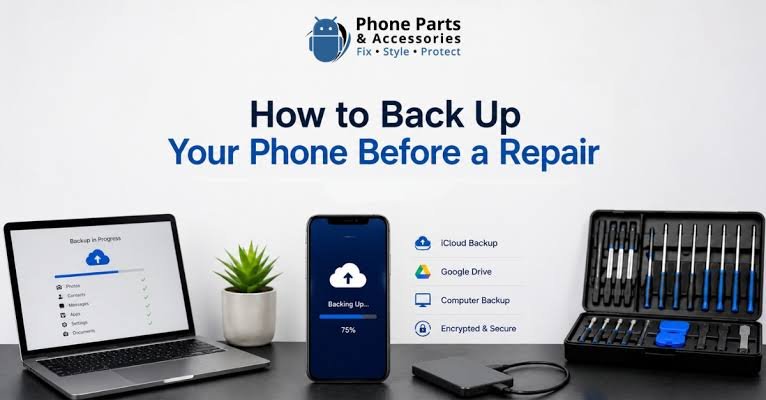
Before you hand an Android phone in for repair, back up your data, check that the backup worked, then protect your accounts. Open Settings, then Google, then All services, then Backup, and tap Back up now. Turn on Photos & videos too. Google says its backup covers apps and app data, call history, contacts, device settings and SMS and MMS messages, but not every app can back up all its data. After that, decide whether to erase the phone. A factory reset is the main privacy safeguard, but it only works if your backup is complete. Here are the steps, a repair-day checklist, the risks and what I could not confirm.
Step 1: Make a Google Backup
Turn backup on
- Open Settings.
- Tap Google services (or Google), then All services.
- Select the data to back up: Photos & videos, Device data, or both.
- Turn Backup on.
Back up now
- Open Settings, then Google, then All services.
- Under “Backup and restore,” tap Backup, then Back up now.
Check what was saved
Open Settings, tap Google services, then Backup. Under Backup details, review the data included.
What Google Backs Up
- Apps and app data
- Call history
- Contacts
- Device settings
- SMS and MMS messages
- RCS messages, through Google Messages
- Phone call settings and blocked numbers, through Phone by Google
- Pictures and videos, through Google Photos
Google says not all apps can back up all their data.
Google’s Backup Limits
- Your account includes 15 GB of free storage. More storage needs a Google One plan.
- A Google One backup can take up to 24 hours, and restoring can take up to 24 hours too. Back up early, not at the shop.
- You cannot restore a backup from a newer Android version onto a phone running an older version.
- Backup does not work on phones set up with a work profile, work-only phones or company-owned phones.
- Some steps need Android 9 or later.
- Google recommends a PIN, pattern or password screen lock, not Swipe or Smart Lock, to protect backed-up data.
- Deleting all data from the Google Account dashboard permanently deletes all device and WhatsApp backup data. Do not do this before the repair.
Step 2: Save Extras Google May Miss
- Files and downloads: Android Central says to copy files to a service such as Drive or Dropbox, and to save contacts, texts, apps and settings. A 2022 Android Central guide gives this advice.
- Apps with their own backup: Check chat and banking apps, and note which ones keep their own backup. Google says not all apps back up all their data. This is general advice, and I did not confirm each app’s steps.
- SD card: Samsung says to back up using an SD card or Smart Switch on a PC or Mac. If you have an SD card, remove it and keep it safe. This is Samsung’s advice for Samsung phones.
- A cracked or unresponsive screen: Samsung says you can connect the phone to an external display with DeX and back up from there, which applies to Samsung phones with that feature.
Step 3: Protect Your Accounts and Privacy
- Check your backup first. Do not reset until you are sure your photos, contacts and files are saved. A factory reset erases your data, as Samsung warns.
- Remove the Google Account. Samsung lists this before service, in the Settings menu.
- Factory reset the phone. Android Central says this is the main safeguard and that a factory reset should make recovering data “all but impossible”.
- Remove the SIM card. Android Central says someone could use it to bypass SMS-based two-factor checks, even after a wipe. Samsung says SIM cards should not be included in the package.
- Remove the SD card. Keep it safe.
- Remove any eSIM profile. Android Central says a factory reset may not delete it.
- Remove the case and screen protector. Samsung lists this.
For a Samsung phone, Samsung also lists Maintenance mode (One UI 5 phones only) in Settings under Device care. It hides your private data and creates a secondary account.
If the Phone Will Not Switch On or the Screen Is Broken
- Android Central says you can use a USB-C hub with a keyboard and mouse to reach the settings, or use recovery mode to wipe the phone.
- If the phone will not turn on, you can erase it remotely through Google’s Find My Device, but only if it connects to the internet later. I did not open Google’s Find My Device page.
- Samsung says to use SmartThings Find to erase a broken Samsung phone remotely.
Think Before You Reset
- Android Central says Factory Reset Protection may require your Google account password after a reset, which can limit a repair shop’s testing. Ask the shop what they need.
- The article describes a 2020 case where a Pixel owner alleged her accounts were accessed after a repair. Google later said the issue was not related to the repair process. It says the risk can be reduced but not removed, and that sending it to the manufacturer is lower risk, as is an in-person repair you can watch.
- Some shops may ask you to leave the phone unlocked or give your PIN. I did not find an official source on this. Ask what they need, and avoid giving more than necessary. This is general advice.
After You Get the Phone Back
- Android Central says to reset the phone again before setting it up, since a technician could have installed malware.
- Sign in to the same Google Account and restore your backup. Restoring can take up to 24 hours, according to Google.
- Change your important passwords if you gave anyone access to the phone. This is general advice.
What I Could Not Confirm
- Other phone brands. The backup steps are Google’s. The service steps are for Samsung phones. Xiaomi, Oppo, Vivo, Infinix, Tecno and other brands have their own backup tools and menus, and I did not check them.
- Find My Device and Reactivation Lock. Samsung’s page does not mention Find My Mobile or Reactivation Lock, and I did not open Google’s Find My Device page. Check these before you send the phone.
- Pakistani repair shops. I found no official guidance on what local shops ask for, or what rights you have if data is lost.
- The Android Central article is from January 2022. Some advice may have changed.
- WhatsApp and other app backups. I did not open the apps’ own help pages, so I give no steps.
- Whether a factory reset is always wise before repair. It protects your privacy but can limit a repair, as shown above.
This is general information, not an official notice. Your phone maker and the repair shop are the final authority.
Frequently Asked Questions
How do I back up my Android phone?
Open Settings, Google, All services, Backup, then tap Back up now. Turn on Photos & videos too.
What does Google back up?
Apps and app data, call history, contacts, device settings, SMS and MMS messages, and photos and videos through Google Photos. Not every app can back up all its data.
How long does a backup take?
Google says a Google One backup can take up to 24 hours.
Should I factory reset before a repair?
It is the main privacy safeguard, but make a complete backup first. It may also require your Google password afterwards and can limit testing.
Should I leave my SIM card in?
No. Remove it, because it could be used to bypass SMS-based security checks.
What if my screen is broken?
Try a USB hub with a keyboard and mouse, or recovery mode, or erase it remotely if it connects to the internet.
Do I get my data back after the repair?
If you made a complete backup, sign in to the same Google Account on the phone and restore it.
Make a full backup, check it, and then protect your accounts before the phone leaves your hands.
