


Your laptop freezes, files open slowly, or Windows crashes without warning. Before you blame the processor, look at the drive. A worn-out solid-state drive (SSD) can cause all these problems, and it can also lose your data. The good news is that you can check SSD health in a few minutes, using tools that are already built into Windows. This guide explains three simple methods, what the numbers mean, and what to do if your drive is in trouble.
Why Check Your SSD’s Health?
An SSD stores data in flash memory cells, and each cell wears out a little every time you write to it. Modern drives last for years, but they do not last forever. A health check shows how much life is left, whether the drive is running hot, and whether Windows has detected errors. Checking early gives you time to back up your files and replace the drive on your own schedule.
Check your SSD health if:
- Your laptop is slower than before, without a clear reason.
- Files fail to open or copy, or you see error messages.
- Windows freezes or restarts at random.
- Your drive is more than three or four years old.
- You bought a used laptop and want to know how worn the drive is.
Method 1: Check SSD Health in Windows Settings
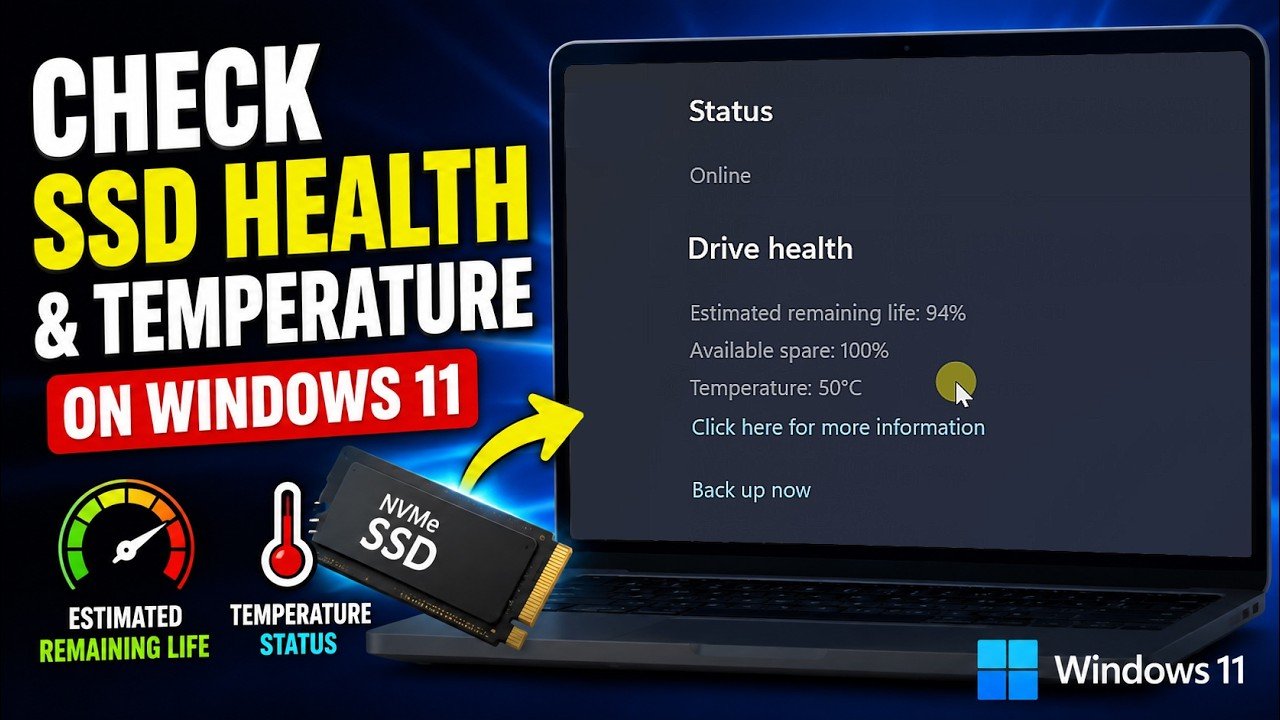
Windows 11 includes a built-in drive health check. It works for NVMe SSDs, the newer, faster type found in most recent laptops.
- Open Settings.
- Go to System, then Storage.
- Click Advanced storage settings, then Disks & volumes.
- Select your SSD and click Properties.
- Look at the Drive health section.
You will see these details:
| Setting | What It Means |
|---|---|
| Estimated remaining life | An estimate, based on the maker’s prediction, of how much life the drive has left |
| Available spare | The percentage of reserve cells the drive still has to replace worn-out ones |
| Temperature | The current temperature of the drive |
This method has one limit. Microsoft’s Drive health feature is available only for NVMe SSDs, not for older SATA SSDs or hard disks. For those, use Method 2 or Method 3.
Windows Critical Warnings
Windows may also show a critical warning. It can say that spare capacity is low, that reliability is degraded, or that the drive has gone into read-only mode. Treat any of these as a serious sign. Back up your data right away and plan to replace the drive.
Method 2: Use PowerShell
PowerShell gives you more detail and works on most drives.
- Click Start, type PowerShell, right-click it, and choose Run as administrator.
- Type
Get-PhysicalDiskand press Enter. - Check the HealthStatus column.
The common results are:
- Healthy: Windows reports no problem.
- Warning: Windows has found a possible issue.
- Unhealthy: Windows reports a health problem.
- Unknown: Windows cannot read the status.
For wear and error counters, run this command:
Get-PhysicalDisk | Get-StorageReliabilityCounter | Format-List
The output includes values such as wear, temperature, power-on hours, and read and write errors. Reviews describe this as useful but surface-level, because it does not show the full detail that a dedicated tool does.
The older command wmic diskdrive get status no longer works on newer systems. One review says Microsoft removed WMIC from Windows 11 starting with version 25H2, so use PowerShell instead.
Method 3: Use a Free S.M.A.R.T. Tool
S.M.A.R.T. stands for Self-Monitoring, Analysis, and Reporting Technology. Every modern SSD records its own health data, and free tools can read it. CrystalDiskInfo is a popular option. It shows a simple health label and a temperature reading, and it lists the full S.M.A.R.T. attributes. Download it only from its official website, and check that you have the correct file.
Many SSD makers also offer their own free tools, such as Samsung Magician, Western Digital Dashboard, and Crucial Storage Executive. Use the tool that matches your drive brand, because it can also update the drive’s firmware.
What the Numbers Mean
| Reading | What It Suggests | What to Do |
|---|---|---|
| Healthy, high remaining life | The drive is in good shape | Keep backups and re-check every few months |
| Remaining life below about 20 percent | The drive is heavily worn | Back up now and plan a replacement |
| Low available spare | Few reserve cells are left | Back up and replace soon |
| Caution or Bad status | The drive has errors or warning signs | Back up immediately and replace |
| High temperature, such as above 70°C often | The drive may be overheating | Improve cooling and check airflow |
The 20 percent line is a practical rule of thumb, not an official limit. Remaining life is an estimate, and a drive can keep working past 0 percent or fail early. Never treat the number as a promise.
Other Warning Signs
- The laptop does not boot, or it often says that no boot device is found.
- The drive disappears from File Explorer or from BIOS.
- Files become corrupt, or programs crash while saving.
- Very slow copying and long freezes during file work.
- Repeated Blue Screen errors that mention disk or storage problems.
What to Do If Your SSD Looks Unhealthy
- Back up first. Copy important files to an external drive or cloud storage.
- Stop heavy use. Avoid large downloads and installs until you replace the drive.
- Update the firmware. Use your maker’s tool, in case the problem is a known bug.
- Check the warranty. Many SSDs have a warranty based on years and terabytes written. A worn drive may be covered.
- Replace the drive. Pick an SSD that matches your laptop’s type, such as NVMe M.2 or SATA, and size.
- Restore your data. Reinstall Windows or restore from a backup image on the new drive.
Tips to Make Your SSD Last Longer
- Keep at least 10 to 20 percent of the drive free, so it has room to work.
- Keep your laptop cool and its vents clear.
- Do not defragment an SSD. Let Windows handle it with its built-in Optimize Drives tool, which sends the right command for SSDs.
- Avoid constant heavy writing, such as large temporary files, when you can.
- Keep Windows and your SSD firmware up to date.
- Back up regularly. Any drive can fail without warning.
Frequently Asked Questions
How do I check SSD health in Windows 11?
Go to Settings, System, Storage, Advanced storage settings, Disks & volumes, select your drive, and click Properties.
Why does Windows not show drive health for my SSD?
The built-in Drive health display is available only for NVMe SSDs. Use PowerShell or CrystalDiskInfo for other drives.
What does “estimated remaining life” mean?
It is an estimate of how much of the drive’s rated endurance is left, based on the maker’s prediction. It is not a guarantee.
How long does an SSD last?
It depends on the drive, how much you write to it, and how well it is cooled. Many last for years, but you should always keep backups.
Is it safe to use CrystalDiskInfo?
Yes, if you download it from its official site. Avoid copies from unknown sources.
Conclusion
To check SSD health on a Windows laptop, start with Settings, then use PowerShell for more detail, and a free tool like CrystalDiskInfo for the full report. Watch the remaining life, available spare, and temperature, and back up your files as soon as any warning appears. The percentages are estimates, so regular backups matter more than any single number. Menus and tools can change between Windows versions, so check Microsoft’s support page if a step looks different. For more practical guides, keep following Pakistan Post. You can also read Microsoft’s page on storage device critical warnings.
