


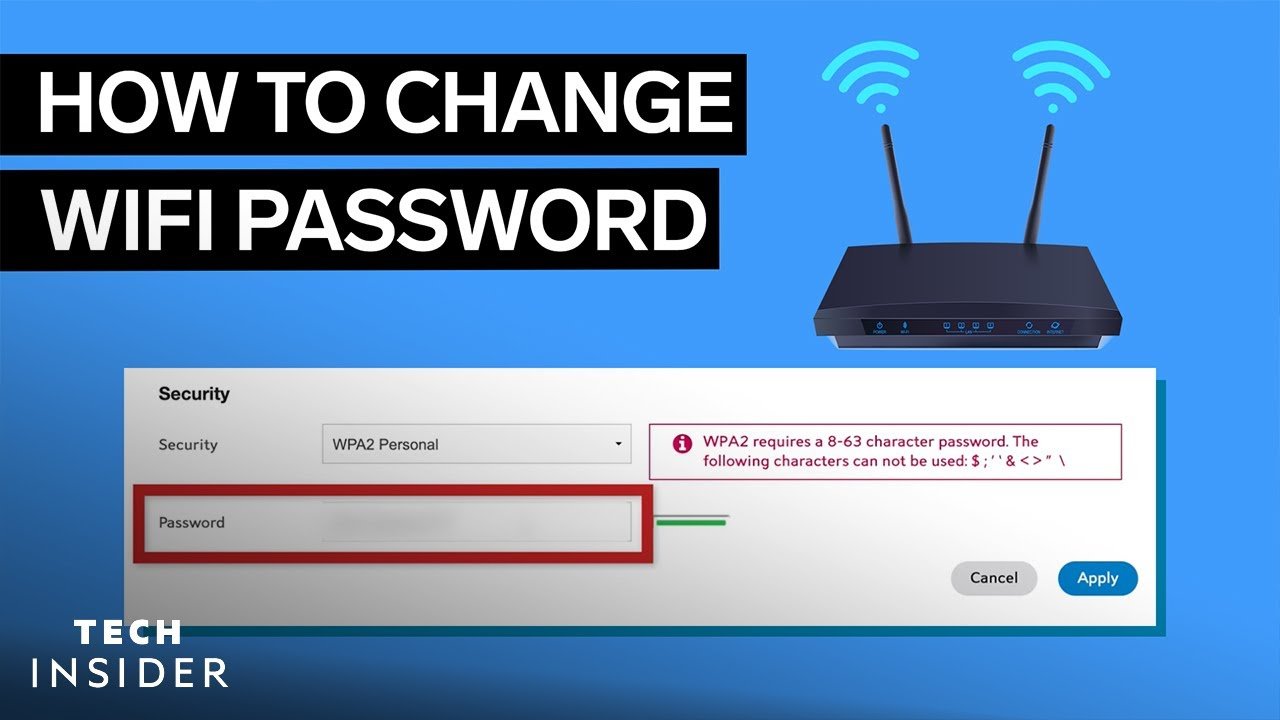
To change your home Wi-Fi password safely, log in to your router’s admin page, set a new long and unique Wi-Fi password under the wireless security settings, make sure the encryption is WPA3 Personal or WPA2 Personal, and save. Then reconnect each device with the new password. Also change the router’s own admin password, because anyone with admin access can undo your other protections. These steps follow advice from the US Federal Trade Commission (FTC) and the US Cybersecurity and Infrastructure Security Agency (CISA). Router menus differ by brand and provider, so check the sticker or manual on your router. Here are the steps, how to choose a strong password, the other settings worth changing and what I could not confirm.
Before You Start
- Use a phone or laptop already connected to your Wi-Fi, or connect a laptop to the router with a cable. Your connection will drop when the password changes.
- Find the router’s label or manual. It usually shows the login details. This is general advice.
- Make a list of the devices that use the Wi-Fi, such as phones, TVs, laptops and smart devices, because you will need to reconnect each one.
Step 1: Log In to the Router
- Type the router’s address into your browser. It is usually printed on the router’s label or in the manual. I did not confirm one common address for all brands.
- Enter the admin username and password.
- If you never changed them, they may be the default ones. A PTCL guide on ProPakistani says the default username and password are usually both “admin”, and that you should check the sticker on the modem or its box if they do not work. That guide is undated and does not state the address, so I treat it as a hint only.
FTC says to change the default admin username and password, because default login details can be easy for others to find.
Step 2: Open the Wireless Security Settings
Look for a menu called Wireless, Wi-Fi or WLAN, then Security. The PTCL guide describes Wireless, then Security, with a field called WPA/WAPI passphrase near the bottom of the form. Other routers may use different names, such as “password”, “key” or “pre-shared key”.
Step 3: Choose a Strong, Unique Password
- CISA says to use a password that is long, random and unique.
- FTC says to set a unique Wi-Fi password so strangers cannot join, and not to use names, addresses or the router’s brand in the network name.
- A long passphrase of several unrelated words, with numbers or symbols added, is easier to remember than a short random one. This is general advice.
- Do not use your phone number, date of birth, house number or the old password with a small change. This is general advice.
Step 4: Check the Encryption Type
| Setting | What the sources say |
|---|---|
| WPA3 Personal | FTC calls it the newest and best encryption available |
| WPA2 Personal (AES) | Acceptable, according to FTC and CISA |
| WPA, WEP, WPA2 with TKIP, or no password (open) | Not secure, according to FTC and CISA |
If your router only offers the older options, FTC says to update the router software first, and to consider a new router if WPA2 or WPA3 is still not offered. CISA says to ask your internet provider for an upgrade or buy a new router. Some routers offer a mix of WPA2 and WPA3. I did not confirm which mixed modes are best for older devices.
Step 5: Save and Reconnect
- Click Apply or Save. The PTCL guide says the router restarts and the new password takes effect.
- On each device, forget the old network if it will not connect, then join again with the new password. On Android this is under Settings, Network & internet, Internet, Saved networks, then Forget.
- Log out of the admin page. FTC says to do this so no one can use an open admin session.
Step 6: Change the Router Admin Password Too
FTC says to set a separate, strong router admin password, since anyone with admin access could undo your other protections. Do not use the same password as your Wi-Fi password.
Other Safety Settings Worth Checking
- Firmware updates: FTC and CISA say to keep the router’s firmware updated and, where possible, turn on automatic updates. FTC says to ask your internet provider whether it pushes updates automatically.
- Remote management, WPS and UPnP: FTC says to turn off remote management, WPS (connecting by button push) and UPnP, because these conveniences can weaken security.
- Guest network: FTC and CISA say to set up a guest network with its own password, so visitors and smart devices stay off your main network.
- Firewall: FTC says to turn on the router’s built-in firewall.
- Network name: FTC says not to use names, addresses or the router brand.
When to Change the Password
- If you shared it with a visitor, a tenant or a worker and do not want them connected any more. This is general advice.
- If your connection is slow and you see unknown devices in the router’s device list. This is general advice.
- If you still use the default password.
- Every so often, and after any security warning. This is general advice.
What I Could Not Confirm
- Pakistani providers’ own steps. I did not find an official page from PTCL, StormFiber, Nayatel or others. The PTCL steps come from one undated ProPakistani guide that leaves out the login address, so they may not match your model.
- The router address and default login. They differ by brand and provider. Use the sticker or manual, or ask your provider.
- Other menu names. Menus differ between TP-Link, Huawei, ZTE, D-Link and others. I did not check them.
- Provider-managed routers. Some providers may restrict changes or ask you to use an app. I did not check.
- How often to change the password. The FTC and CISA pages do not give a schedule.
- The FTC and CISA pages are US guidance. The advice applies to any home router, but they do not cover Pakistani providers.
This is general information, not an official notice. Your router maker and your internet provider are the final authority.
Frequently Asked Questions
How do I change my Wi-Fi password?
Log in to the router’s admin page, open the wireless security settings, enter a new password and save.
What encryption should I choose?
WPA3 Personal if available, otherwise WPA2 Personal (AES), according to FTC and CISA.
What is a strong Wi-Fi password?
CISA says long, random and unique. Do not use your name, address or router brand.
Do I need to change the router admin password too?
Yes. FTC says to set a separate strong admin password.
What if I forget the router login?
Check the sticker or manual, or ask your provider. I did not confirm a safe reset method for every router.
Will my devices disconnect?
Yes. Reconnect each one with the new password.
Should I set up a guest network?
Yes, if your router has one. FTC and CISA say it keeps visitors and smart devices off your main network.
Choose a long, unique password, change the router’s admin login, and keep the firmware updated.
