


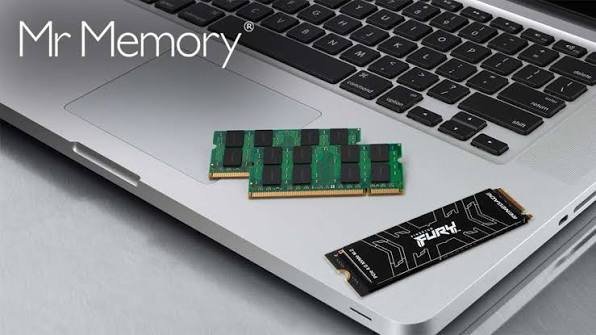
A slow laptop is not always a sign that you need a new one. Sometimes more memory is all it takes. But before you buy a stick of RAM, you must know what your laptop already has and what it can accept. The wrong type simply will not fit. This guide shows how to check laptop RAM in Windows, how to read the results, and how to tell whether your laptop can be upgraded at all.
Step 1: Check How Much RAM You Have
The quickest check uses Settings. Open Settings, choose System, and then About. Look for Installed RAM in the Device specifications. This shows the total memory that Windows can see.
You can also use System Information. Press the Windows key and R, type msinfo32, and press Enter. Look for Installed Physical Memory (RAM) near the top of the System Summary page.
Step 2: Use Task Manager for Speed, Type, and Slots
Task Manager gives you the most useful details in one place.
- Press Ctrl + Shift + Esc to open Task Manager.
- If it opens in a small view, click More details.
- Open the Performance tab.
- Click Memory.
On the right side, you will see the total memory, the speed, the form factor, and “Slots used”. The speed may appear as MHz. Windows 11 version 25H2 shows DDR speed as MT/s, which means megatransfers per second. The number is similar, so treat them as the same for comparing modules.
What the Task Manager Fields Tell You
| Field | What It Means |
|---|---|
| Speed | The speed at which your RAM currently runs |
| Slots used | How many memory slots are in use, such as 1 of 2 |
| Form factor | SODIMM means a removable laptop memory stick |
| Hardware reserved | Memory reserved for hardware, such as integrated graphics |
If Slots used shows “1 of 2”, you have one empty slot. If it shows “0 of 0” or no slot information, the memory is probably soldered.
Step 3: Find the RAM Type With PowerShell
For module details, such as the part number, use PowerShell.
- Click Start, type PowerShell, right-click it, and choose Run as administrator.
- Paste this command and press Enter:
Get-CimInstance -ClassName Win32_PhysicalMemory | Select-Object BankLabel, DeviceLocator, Capacity, Speed, Manufacturer, PartNumber, SMBIOSMemoryType
The result lists each memory module, its size in bytes, its speed, its maker, and its part number. Copy the part number into a search engine to see the exact specifications.
The SMBIOSMemoryType number shows the type. Guides list 26 for DDR4 and 34 for DDR5. If you see 0 or an unknown number, the BIOS did not report the type clearly. In that case, use a free tool such as CPU-Z, or read the label on the module.
The older WMIC command is deprecated in Windows 11, so it may not work on a new system. PowerShell is the safer choice.
Step 4: Find the Maximum RAM Your Laptop Supports
Run this command in PowerShell to see the maximum capacity the system reports:
(Get-CimInstance -ClassName Win32_PhysicalMemoryArray).MaxCapacity
The answer comes in kilobytes. Divide it by 1,048,576 to convert it to gigabytes. Treat the result as a hint only, because it comes from the BIOS and may not match the real limit. For the exact maximum, check the laptop maker’s specification page or service manual for your exact model.
Is Your Laptop RAM Upgradeable?
This is the most important question. Many thin laptops have memory soldered to the motherboard, and it cannot be changed.
| Clue | What It Usually Means |
|---|---|
| DDR4 or DDR5 and SODIMM | Removable slots. Upgrade is likely possible. |
| LPDDR4X, LPDDR5, or LPDDR5X | Soldered memory in nearly all cases. No upgrade. |
| Slots used shows 0 of 0 | Memory is almost certainly soldered. |
| One slot used and one empty | You can add a second module. |
| Both slots used | You must replace the existing modules to add capacity. |
Some laptops have a mix: part of the RAM is soldered, and one slot is free for expansion. Check the maker’s manual for your model.
Check These Specs Before You Buy New RAM
- Type: A DDR4 laptop cannot use DDR5 modules, and the reverse is also true.
- Form factor: Laptops use SODIMM modules, which are shorter than desktop sticks.
- Maximum capacity: Both the processor and the laptop have limits.
- Slots: Know how many are free.
- Speed: Faster RAM will usually run at the laptop’s supported speed, so there is little benefit in paying more.
- Voltage and rank: Match the existing module where you can.
Tips for a Smooth Upgrade
- Match your new module to the old one in type and speed. Mixed speeds make everything run at the slower speed.
- Use two identical modules when possible. Many laptops perform better when two matching modules run in dual-channel mode.
- Make sure you have 64-bit Windows if you plan to use more than 4 GB.
- Buy from a reliable seller and keep the receipt. Counterfeit and mismatched modules are common.
- Check whether opening the laptop affects your warranty. If it does, ask the maker or a service centre to do the upgrade.
How Much RAM Do You Need?
These are general guidelines:
- 4 GB: the minimum for Windows 11, but it feels slow with several apps open.
- 8 GB: fine for browsing, documents, and video calls.
- 16 GB: good for many browser tabs, light editing, and multitasking.
- 32 GB or more: useful for heavy video editing, virtual machines, and development work.
Before you upgrade, check whether RAM is really the problem. Open Task Manager during slow moments. If memory use stays near 90 to 100 percent, more RAM can help. If the disk or the CPU is the bottleneck, an SSD or a cleanup may help more.
Safety Steps When Installing RAM
- Shut down the laptop, unplug the charger, and disconnect the battery if it is removable.
- Touch a metal surface to discharge static electricity before you handle the modules.
- Open the service panel and find the memory slots.
- Release the clips, remove the old module, and insert the new module at an angle until it clicks down.
- Close the panel, power on, and check the new total in Task Manager.
Frequently Asked Questions
How do I check my laptop RAM in Windows?
Open Task Manager, go to Performance, and click Memory. You can also check Settings, System, About.
How do I know if my laptop RAM is DDR4 or DDR5?
Run the PowerShell command in this guide and look at SMBIOSMemoryType, or check the part number of the module. CPU-Z also shows it.
Can I upgrade soldered RAM?
No. Soldered memory is fixed to the motherboard. Only laptops with SODIMM slots can be upgraded.
Can I mix different RAM speeds?
You can, but the system will usually run all modules at the slowest speed. Matching modules are better.
How do I find the maximum RAM supported?
Use the PowerShell hint and then check the maker’s specification page or service manual for your exact model.
Conclusion
To check laptop RAM, use Task Manager for the total, speed, and slots, and PowerShell for the type and part number. Then confirm that your laptop has SODIMM slots and find its maximum capacity before you buy. If your RAM is soldered, an upgrade is not possible, and a new laptop or an SSD may be the better fix. Specs differ by model, so always confirm with the maker. For more practical guides, keep following Pakistan Post. You can also visit Microsoft’s guide to adding RAM.
